
-
-
November 10, 2021 at 5:00 pm #350659
Melina Murphy
MemberHow can I set the distance from the top on my Window. If I use attributes it sets my window height from the bottom. I want to set window 1″ from ceiling, but Placement window doesn’t let me select it nor manually change the coordinates for up/down – only left right.
Using my keypad arrows moves it too far down and up (it jumps like 4 inches). Please help.
-
November 10, 2021 at 5:11 pm #350660
 Erik TornquistMember
You can set how far an item will move via arrow keys in settings. Can’t recall where but it’s there. I have mine set to 1/8″ with arrows, 3″ with shift+arrow.
Aside from that, I also can’t adjust window height similarly as well and it’s annoying. Granted, I’m still in v12, not sure if that was fixed in v13
-
November 10, 2021 at 6:33 pm #350662
Kristopher Papaleo
ParticipantHi Melina and Erik,
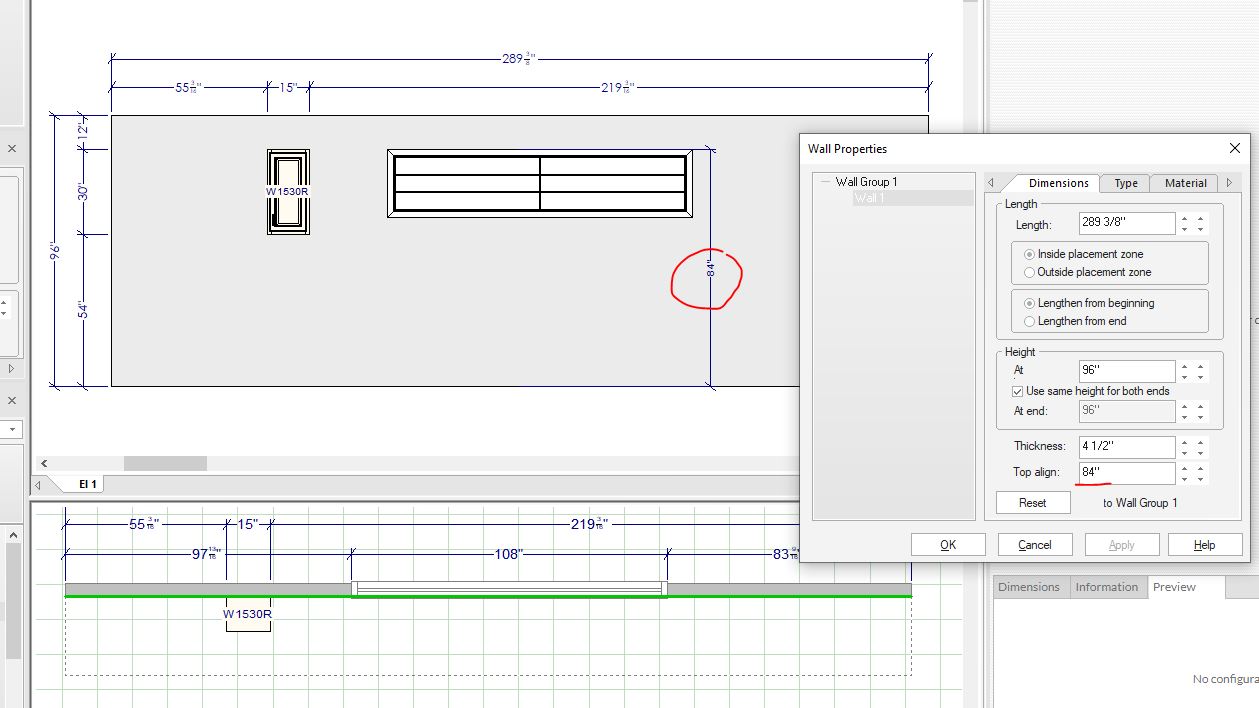
The window item works the same way as a regular wall unit. The top of the window will will sit at whatever Top Alignment you had set on your walls. By default, the top alignment is set at 84 inches off the ground -See attached image.
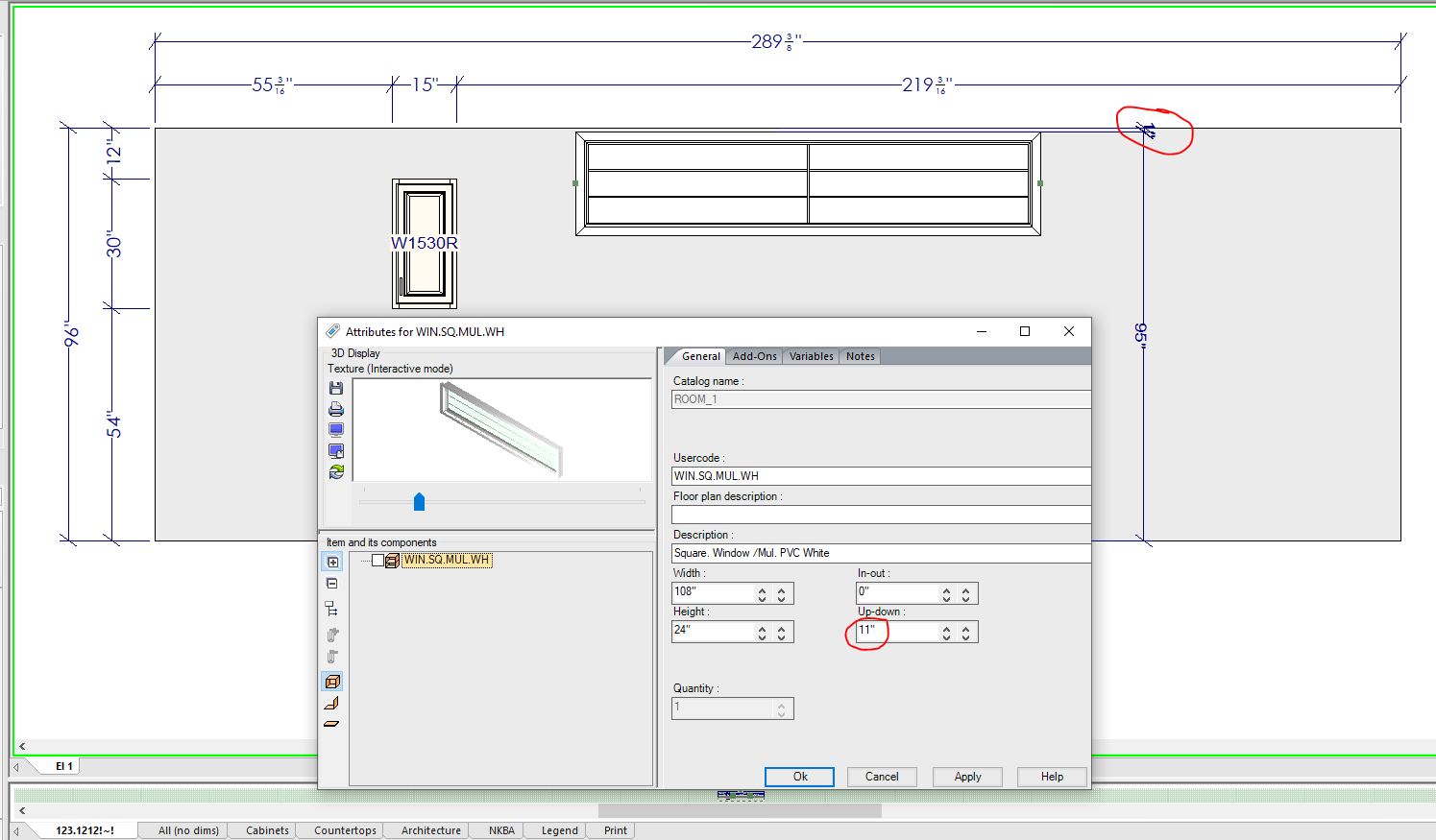
Because the window is being added to the wall at a default height of 84 inches, the Up/Down of the window, technically speaking, is zero. This means that if our wall is 96 inches tall (default height) we would be able to raise the Up/Down of the window to 11′ inches in order to have the top of the window 1 inch away from the ceiling (because our window is sitting at 84 inches by default) -See attached image.
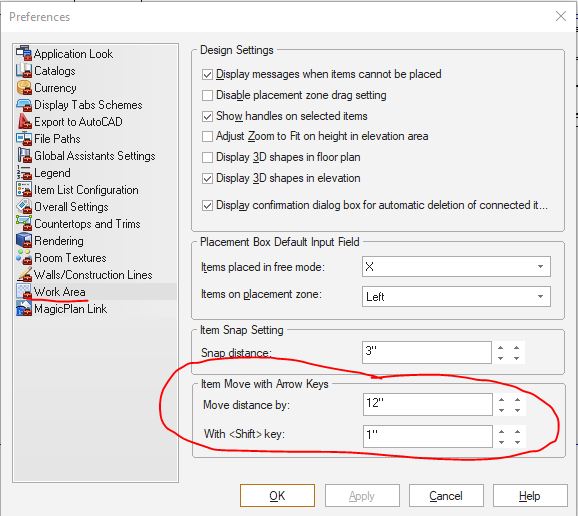
By default, your Arrow key will move units in increments of 12 inches and using Arrow Key + Shift will move your items in increments of 1 inch. You can modify these numbers by going to File > Preferences > Work Area > Item Move with Arrow Keys -See attached image.
Hope this helps!
Kris
Attachments:
-
November 11, 2021 at 7:04 am #350691
 Robin HernonMember
In preferences- if you go to file, select preferences, and go to work area. Once you are in there, you can choose how far your arrow keys will move an item. I keep mine set to 1/16″ for just the arrow key, and 1″ for shift + the arrow key. Another way to do it would be to adjust it in your elevation view with the up/down control. If you select that, when you look in your placement zone window, you can use your tab keys and type in exactly where you want it. Hope this helps!
-


You must be logged in to reply to this topic.