
-
-
May 7, 2020 at 1:03 pm #281039
 Erik TornquistParticipant
How come I can’t put an item through an opening? In this particular case I’m trying to bring a countertop through a “hole” in a wall I created with the Openings “wizard” but it shows as a collision and won’t let me adjust in/out in attributes.
-
May 7, 2020 at 1:08 pm #281040Erik TornquistParticipant
Oh, and in the slim cases the “in/out” shows up in attributes on an item, when inputting a negative number, say “-4 1/2″ , it’ll shove that item past the wall about 12” and that item can not be selected anywhere.
Attachments:
-
May 8, 2020 at 12:12 pm #281161
Kristopher Papaleo
ParticipantHi Erik,
When adding an opening in a wall, the program isn’t taking a portion of the wall out. It is basically making that portion of the wall see though. That does mean it is normal for the collision to be active.
You can however manually remove the collision pattern from showing in the floor plan. HERE is an article to help show you how to modify your “scheme”. It will show you how to turn off the collisions in the plan (I suggest only doing this at the end of the design).
As for the negative number, I believe the counter top knows that it was colliding so it jumped over the wall.
Kris
-
May 8, 2020 at 12:31 pm #281165Erik TornquistParticipant
Hi Kris, thanks for the reply.
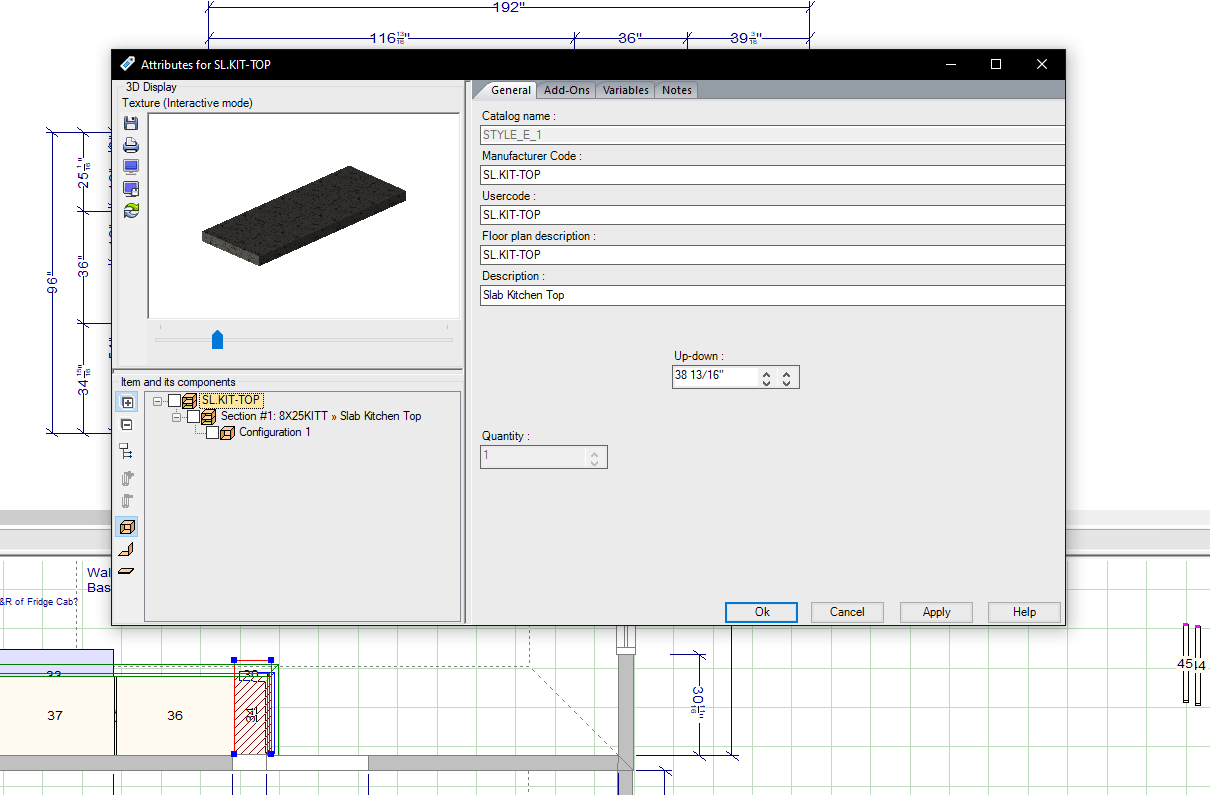
I get what you mean about what adding an opening means and have switched off collision lines before but in this case i’m faced with a new issue as I mentioned. When going in to adjust “in/out” in Attributes of the countertop, it pushes the CT further than inputting (see image). It jumps it a further 12″ or so.
countertop in/out setting is set to -5″ which should show the CT with 1/2″ past the wall but unfortunately isn’t the case.Attachments:
-
-
May 8, 2020 at 1:03 pm #281178Participant
Hi Erik,
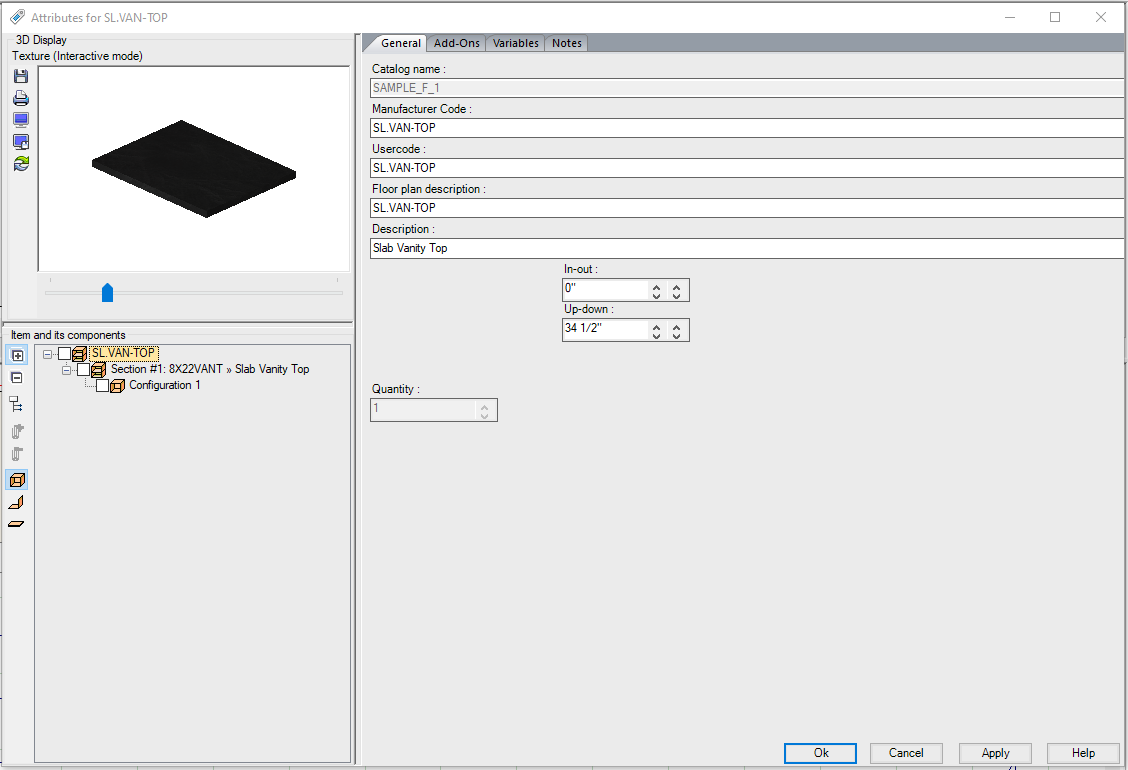
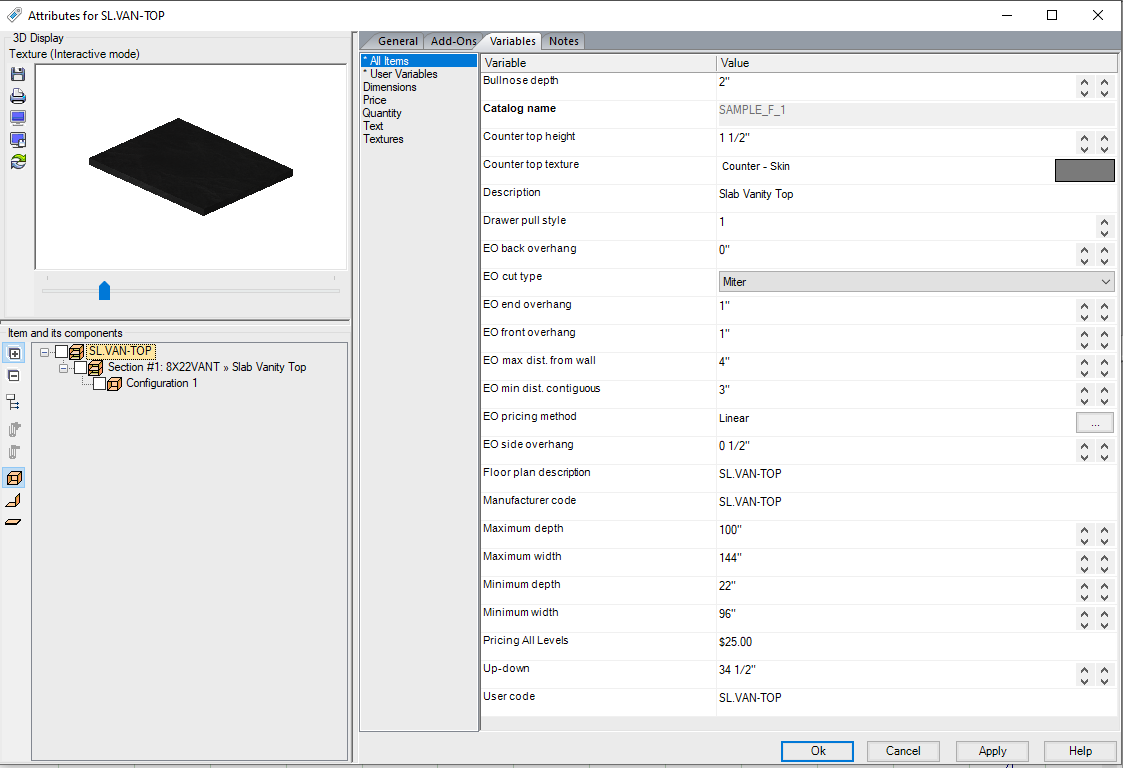
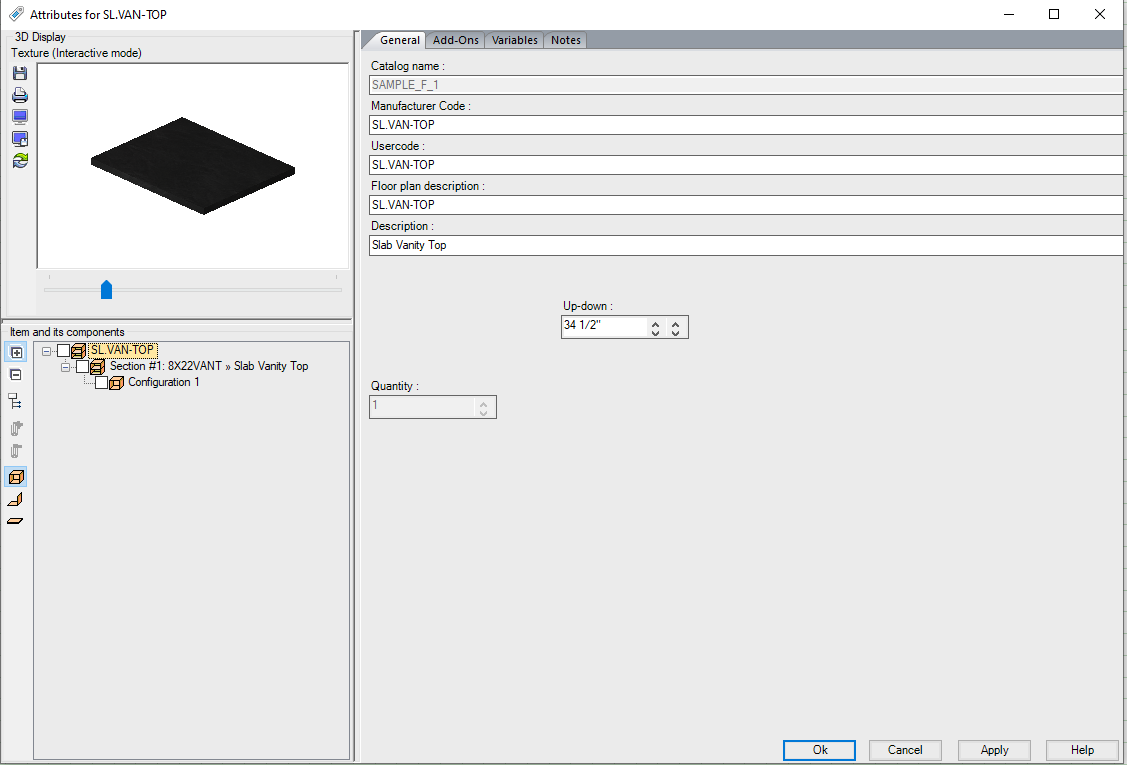
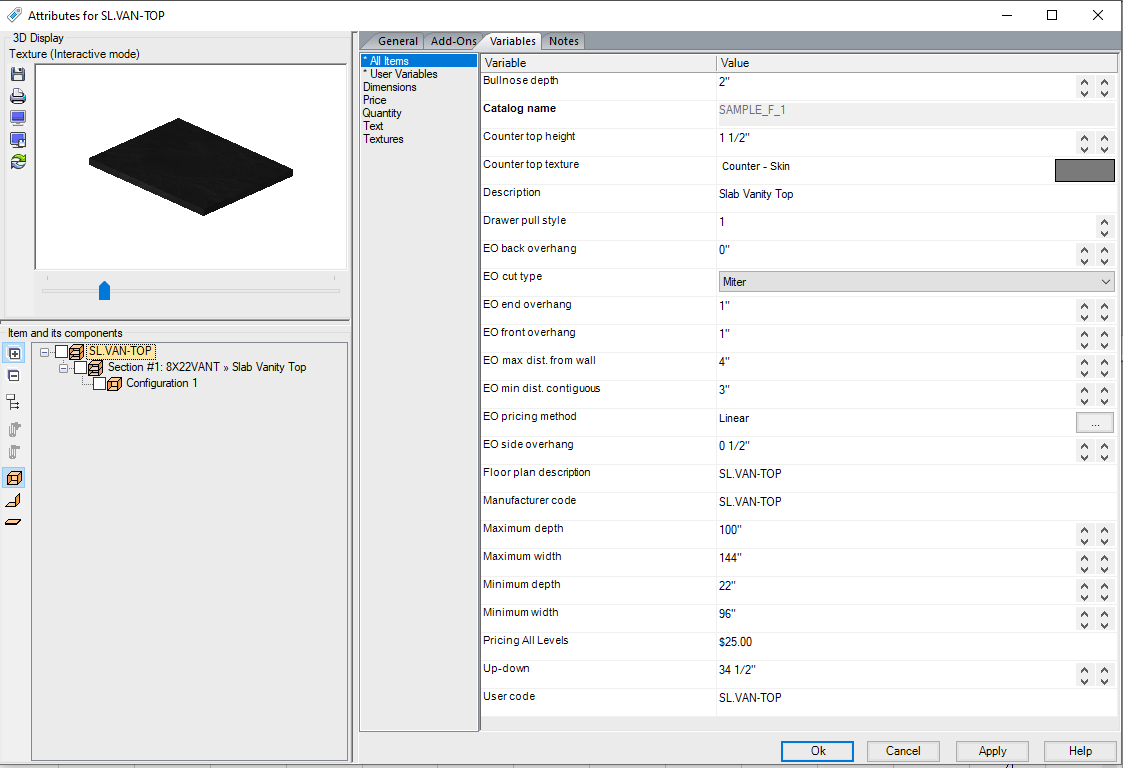
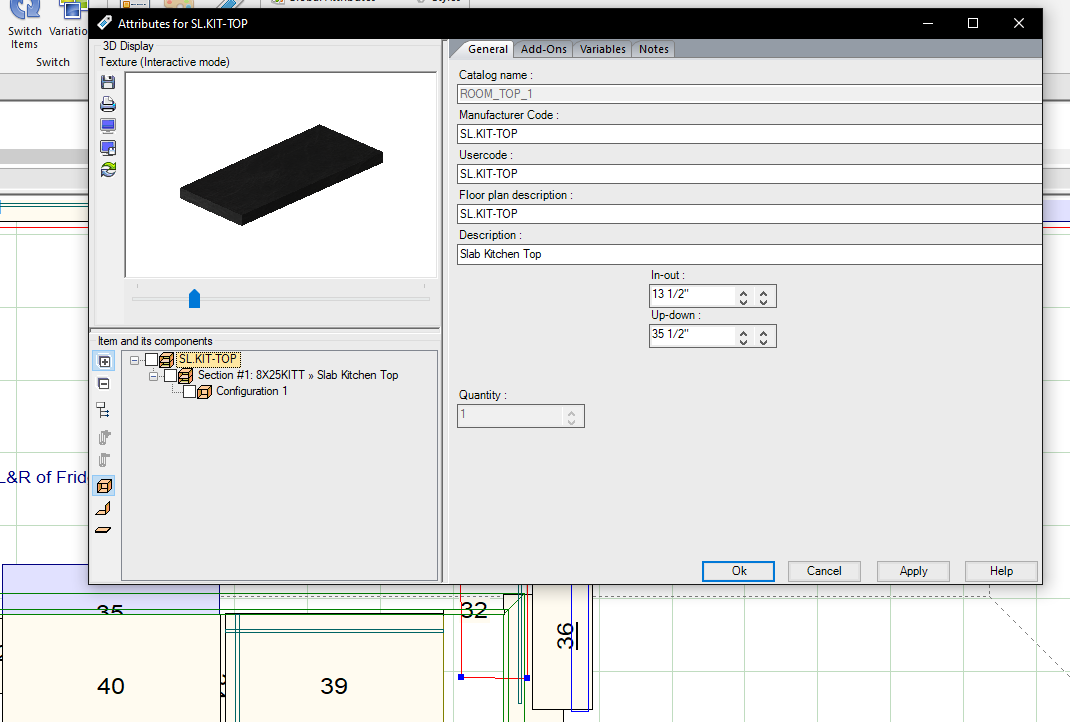
If you go into the Attributes of the Countertop, there is no option to change the In/Out. See images below. In the image you provided, we can see that the counter top (item that is highlighted) coming out of the wall. The only thing about the countertop in your image is it seems the line behind the wall is a little wonky.
Is the colliding item under the counter top another counter?
Kris
-
May 8, 2020 at 3:23 pm #281249Erik TornquistParticipant
No, only one counter. What you see is what happens when I change the in/out. I don’t know what you mean that the in/out can’t be changed when I’ve done it plenty of times and shows up here on this top (I pulled it far from the base temporarily while I try to figure all of this out).
Attachments:
-
May 8, 2020 at 3:43 pm #281265Erik TornquistParticipant
Alright, so I figured out how to fix this (i think) by creating 2 walls in that wall-opening at the counter space. We’ll see if this works. 1 wall from floor to 34″H, 2nd wall bottom @ 52″ up to ceiling, leaving that 18″ opening with room for the countertop to be mounted on the top of that first wall. Hopefully it works.
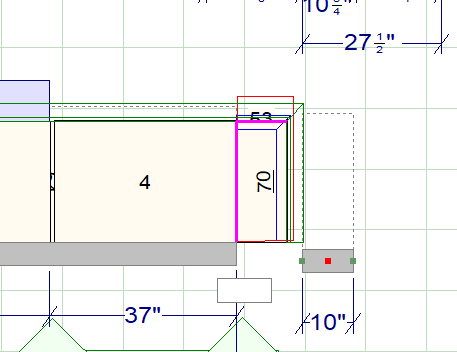
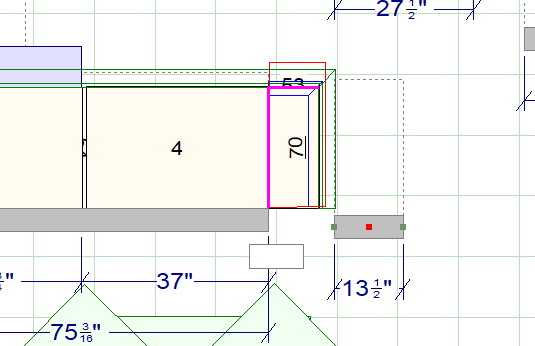
But there’s another issue that happens which I’ve experienced a few times before: You can see from the first pic the small wall is 10″ long, when clicking the green spot to stretch it out, it automatically jumps to 13.5″ and not giving me the ability to bring it back to say 12″; i have to go into the walls properties to input the 12″.
Any idea why this happens?Attachments:
-
-
May 8, 2020 at 4:49 pm #281296Erik TornquistParticipant
Nevermind. Can’t raise a wall up. TIL.
-
May 8, 2020 at 5:25 pm #281335Participant
Hi Erik,
I believe we figured out whats going on here. The issue at hand is that you are only getting the option for the In/Out whenever you double click on the counter top from within the Placement Zone on the floor plan. IF you select the counter top (while in the placement zone) and right click on it to go to the attributes then the In/Out option will NOT be available to you. IF you double click on the counter top OUTSIDE the placement zone, there is no option for the In/Out. Currently, we are determining if this is a bug or if this is how the program was meant to be. Once we determine if this is a bug or not, I will post that information on this thread.
Rather than using the In/Out option for the counter top, I would suggest to Edit the shape of the counter top instead. You would be able to get your desired look a lot quicker and easier. HERE is an article to help you with editing your counter top shape.
Kris
-
May 8, 2020 at 7:25 pm #281385Erik TornquistParticipant
Oh man, you’re right!
Thanks for looking into that for me, it’s greatly appreciated. And yes, I ended up just editing the shape into the wall- I should’ve figured that out previously.
-
-


You must be logged in to reply to this topic.