
-
-
August 16, 2018 at 5:27 pm #200156
 Ariana ThompsonParticipant
Greetings all!
Forgive me if this has been addressed – I searched diligently, but couldn’t find anything. We just upgraded from v9 to v11 a couple of days ago. We are currently “practicing” with V11 before we make the jump to actual designing.
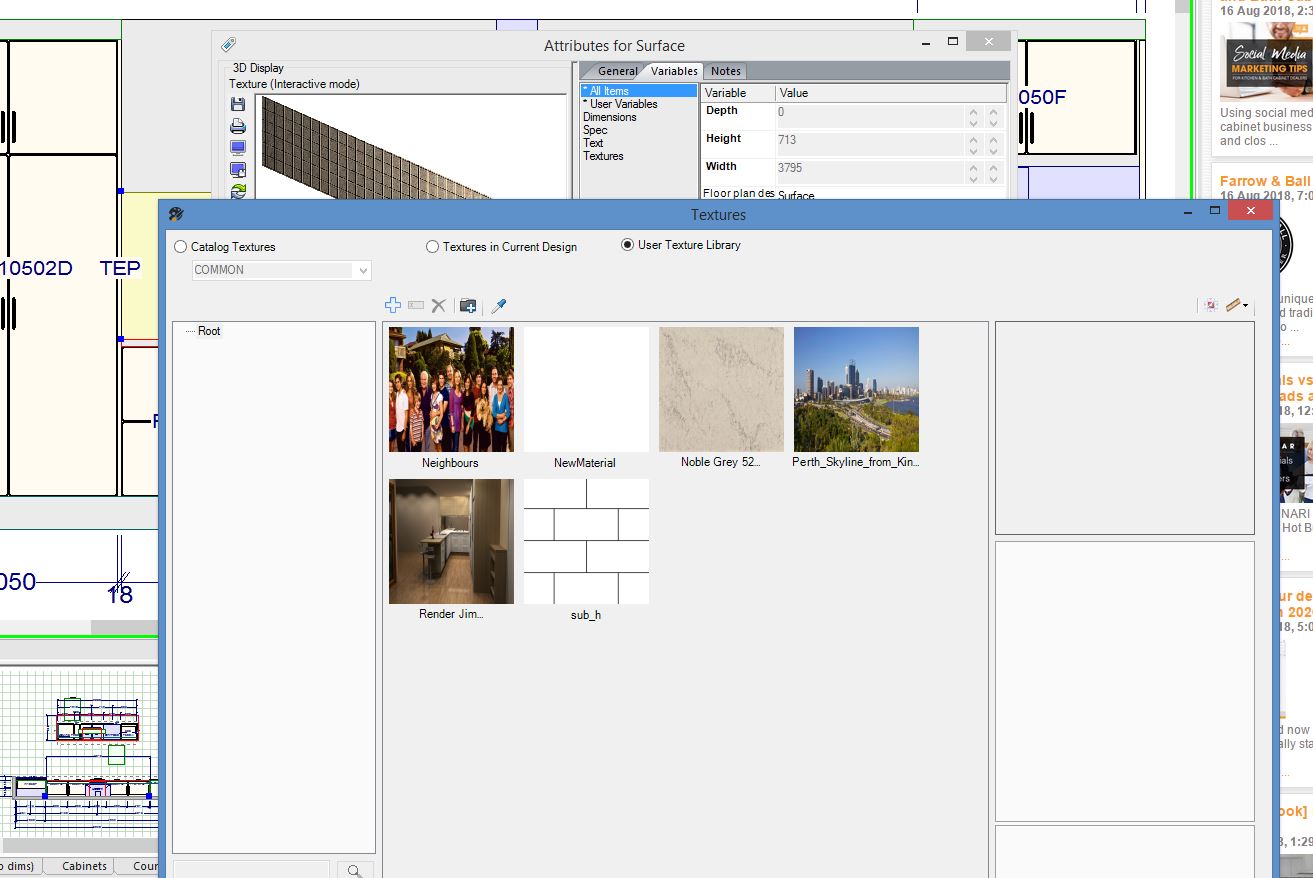
When I draw a wall, then go to an Elevation view – use Surface Tool to create a “backsplash” – I can change the texture to any of the preloaded 2020 textures – but the “Custom” button is not there. I see it in the instructional video – looks like the custom button in v9 – but I’m not getting the button at all. Anyone know what I’m doing wrong?
Many thanks!
-
August 16, 2018 at 7:30 pm #200158
 Mike LangensiepenPilot Pro
You should be looking at picking the ‘User Texture Library’ option and then adding your custom texture there. The principle is the same for any texture so have a look at this instructional video:
Attachments:
-
August 17, 2018 at 10:08 am #200305Ariana ThompsonParticipant
Many thanks!
So much to learn!
-
August 17, 2018 at 10:20 am #200306Ariana ThompsonParticipant
Is there a recommended file size for textures that you recommend?
With v9, I often found that too large a file had to be cropped so small as to lose any pattern repeat, but too small a file was blurry or pixellated in the rendering.
-
August 17, 2018 at 1:14 pm #200343
Ken Short
ParticipantCheck out the knowledge center – lots of good stuff!
For example: https://knowledge.2020spaces.com/articles/en_US/Designing_Your_Space/How-to-do-size-reduction-of-large-imported-textures-in-2020-Design/?q=textures&l=en_US&c=Product%3AX2020_Design&fs=Search&pn=1
-

You must be logged in to reply to this topic.