
-
-
April 30, 2020 at 12:03 pm #279567
 Erik TornquistParticipant
I’m pretty sure I’ve seen it mentioned somewhere before but nothing in the search shows.
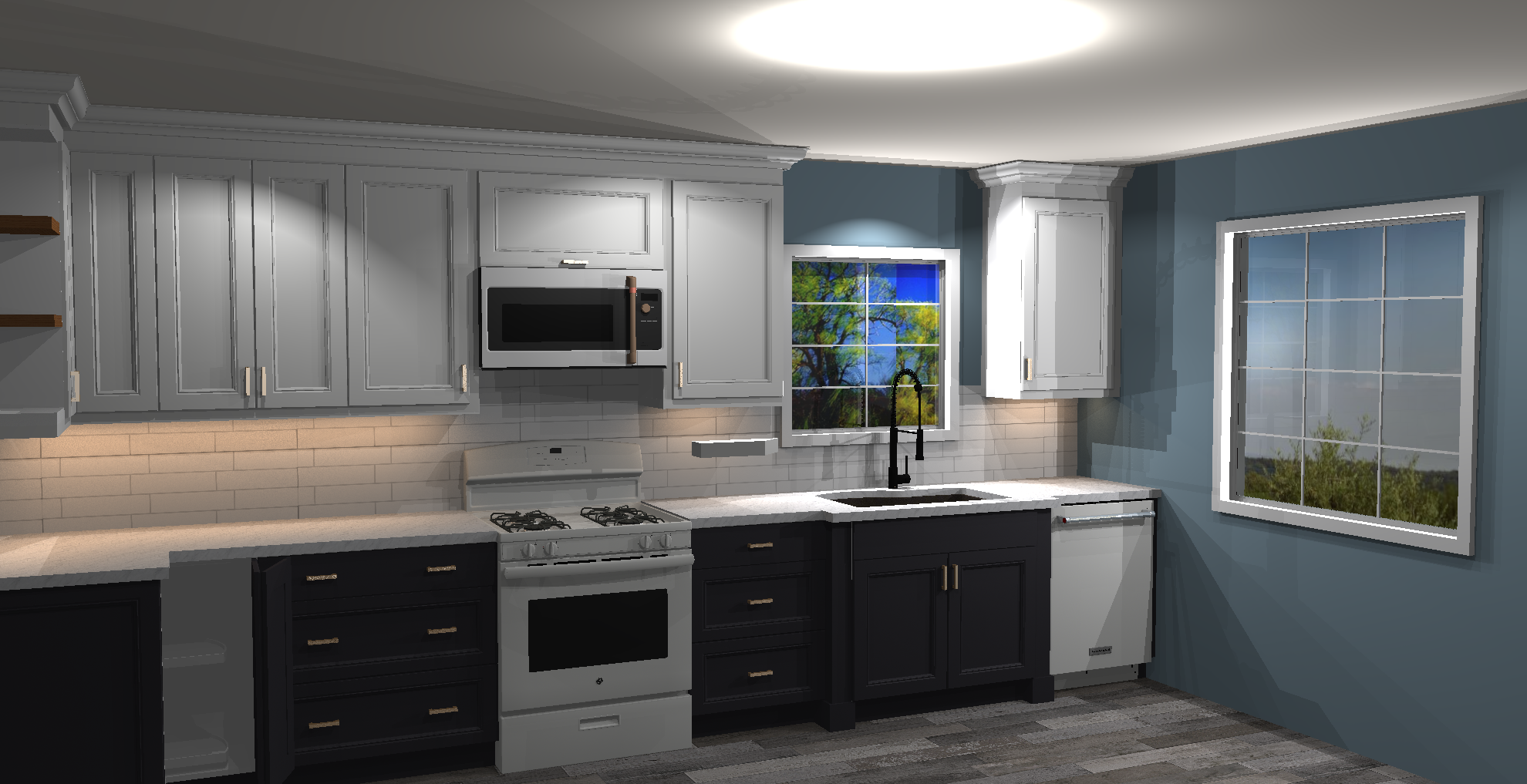
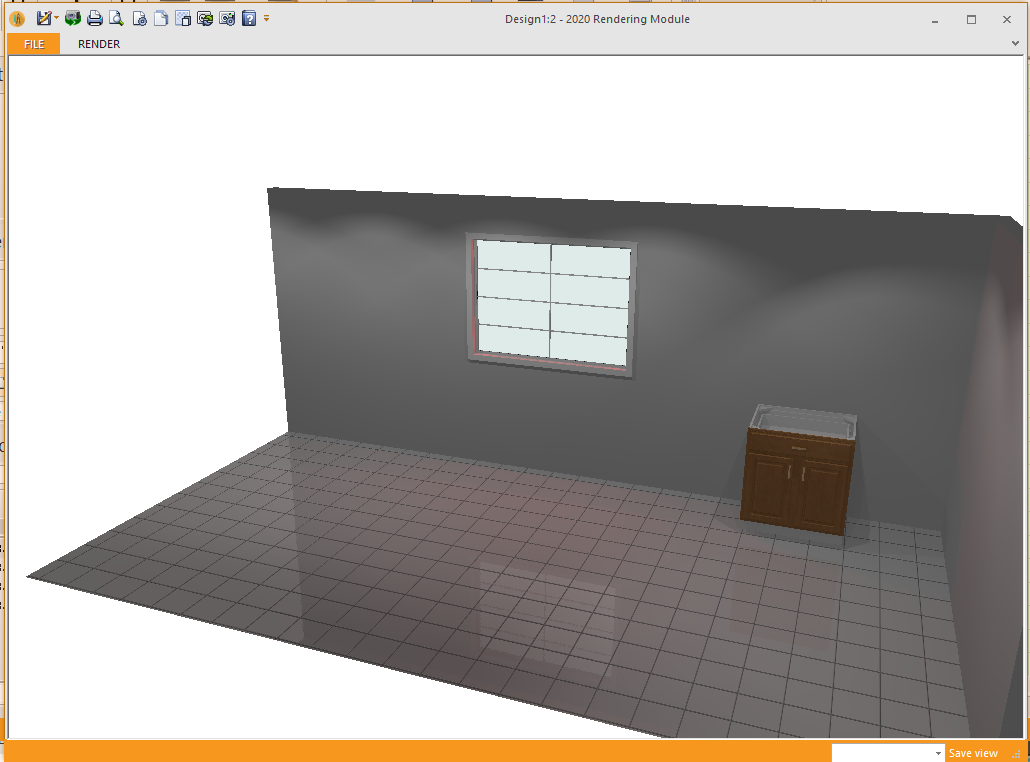
What is with this lighting coming in from windows? I see nowhere in attributes to turn a lighting source off, I’ve even tried “blocking” it by put walls in on the outside but nothing prevents this bright light. Normally I’ve dealt with it but on this one design in particular there is a large window I have to work with. Sun is turned off and other lighting settings are set mid-level, which is good for the lower dark cabinets. Regardless, I’d love to get this light turned off.
-
April 30, 2020 at 6:41 pm #279690
Kristopher Papaleo
ParticipantHi Erik,
There is a way to turn off the lighting on the windows!
To turn the lighting off, right click on the window and go to “Light Properties” from there you want to change the white colour to black.
When working with windows you have to think “White = 100% ON” and “Black = 100% OFF”. If you want the light to come in but a bit more dim, then you have to select a shade of grey. The darker the grey, the less light is produced.
Hope this helps 🙂
Kris
-
April 30, 2020 at 6:50 pm #279691Erik TornquistParticipant
Hi Kris.
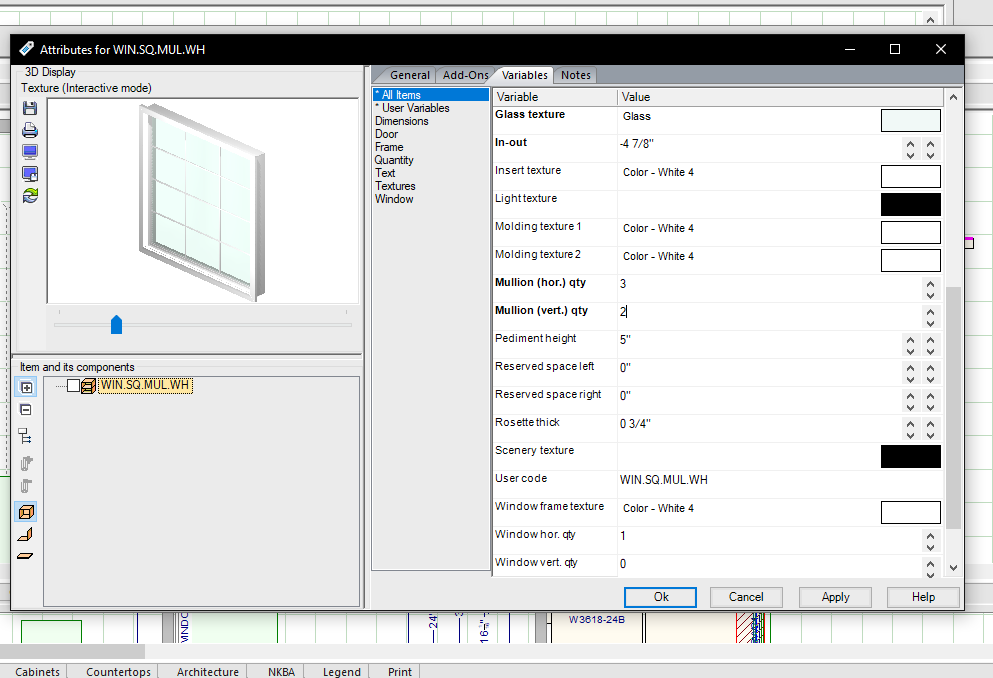
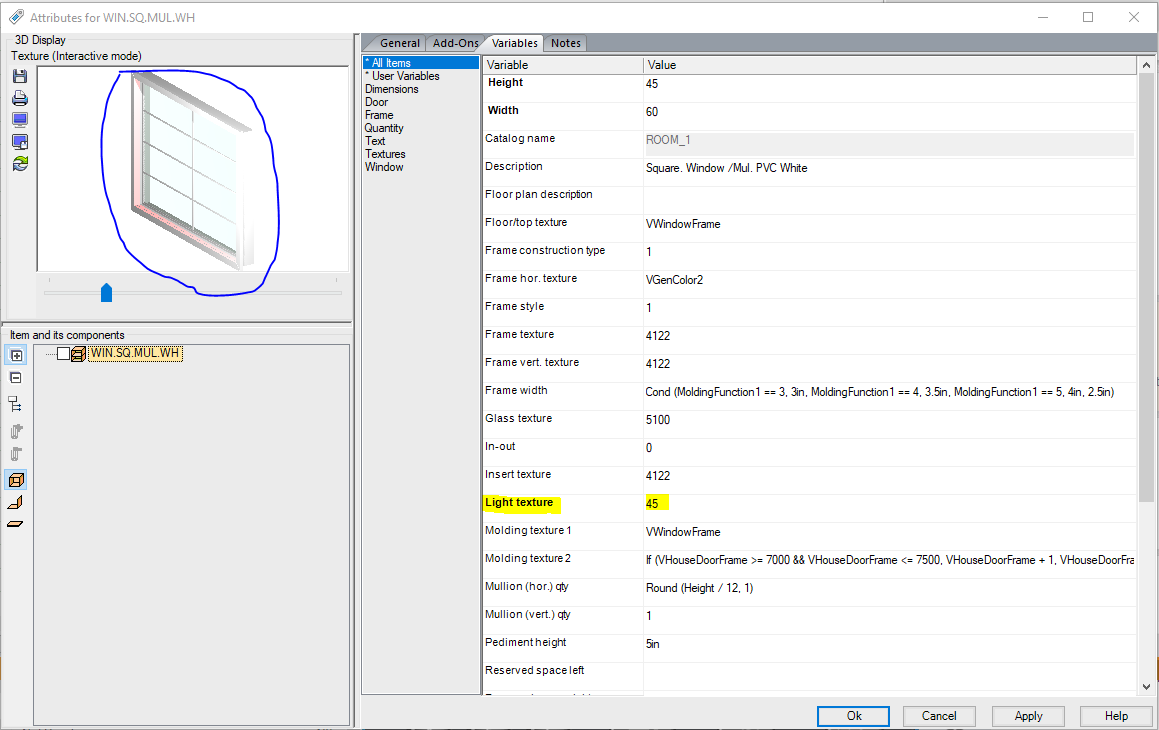
Yes, I remembered that a while ago and I’m pretty sure the pictures shows it(?)
Attachments:
-
-
April 30, 2020 at 7:00 pm #279701Participant
HI Erik,
It will show the Light Texture is Black, you are correct. However the only way to change the light intensity is to right click the unit and go to Light Properties as I’ve explained above. I’m going to double check why there is a “Light Texture” field in the variable section and hopefully let you know tomorrow!
Kris
-
April 30, 2020 at 7:09 pm #279702Erik TornquistParticipant
Ohhhh….wait…. My bad. I see what you mean. And again, all this time didn’t know. I got it taken care of. But yes there is that light texture field and it’s weird- clicking on it to change the “color”, nothing comes up under “common” only under “textures in current design” or users textures.
Also, can you tell me why I’m getting this large bright orb on my ceiling when i moved the spot under “ceiling light properties” to another room?
Attachments:
-
-
May 1, 2020 at 12:09 pm #279785Participant
Hi Erik,
So I asked around and found out how to use the “Light Texture” from within the “Variables” section.
The first thing to know however, this is a more difficult way of setting a light texture. For this process, you would need to know the code of the texture you want to set.
To use the Light Texture :
1. Go to “Variables”
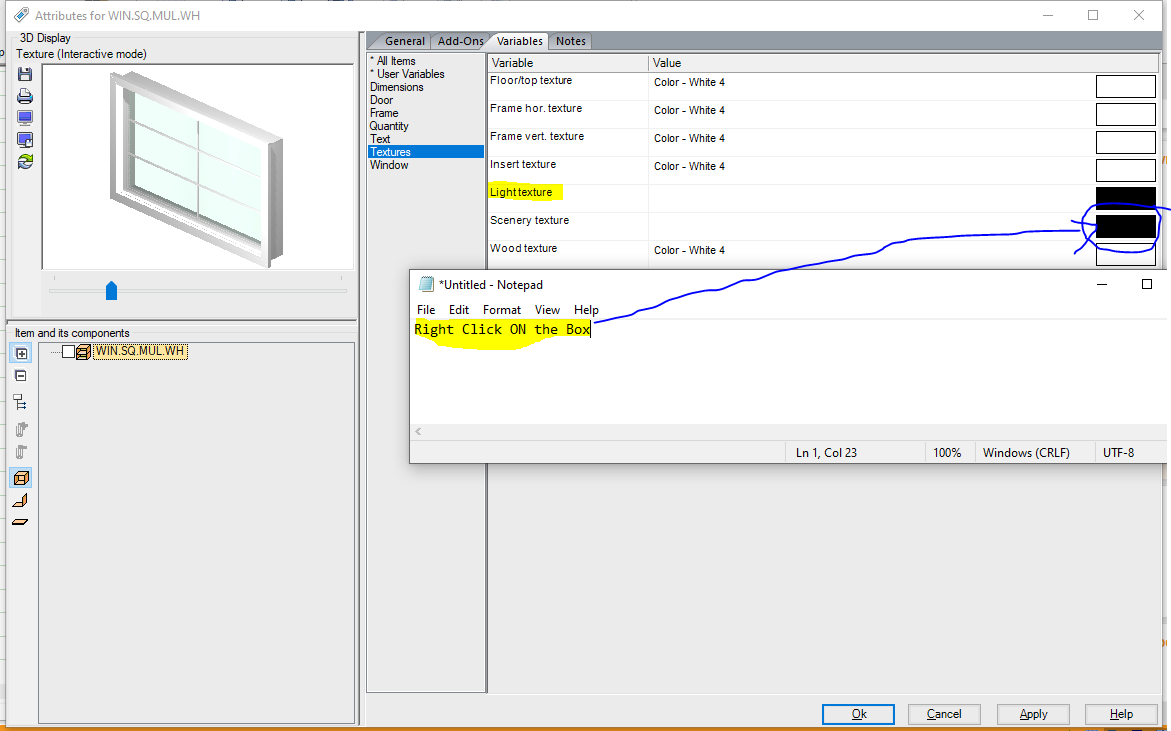
2. Right click on the texture box in “Light Texture” and then select “Expressions”
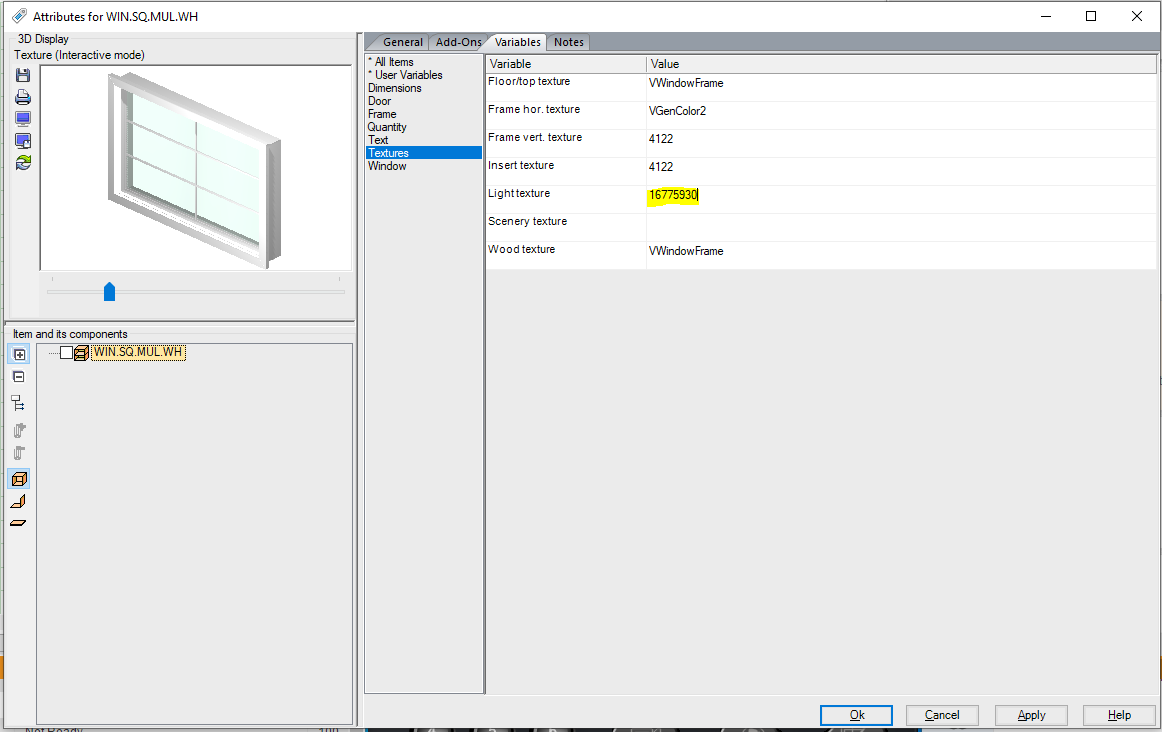
3. Once you set “Expressions” you will now see the code of the texture in place, you need to switch that out for the texture you want to see in its place. Then click “OK” to set the texture.
Again, this is a much longer process then going into the “Light Properties” and changing the colour there.
Check out the images below, you will see the example of me switching the light texture to that of Red (Code : 45)
Aside from that Erik, once you move the ceiling light to another room, you shouldnt see it in the previous room. It could be that there might be an issue with the file. You can test that out by copy/pasting it to a new floor plan and seeing if it works properly, or you can give our support team a call to check that out. The number is 1.866.697.2020.
Kris
-
May 1, 2020 at 1:29 pm #279825Erik TornquistParticipant
Very interesting! Thank you for sharing this. And yes, it is a more complicated way but that seems like it could be helpful if you want to add some form of mood lighting to a space. maybe?
It’s funny, I had to learn 2020 on my own a few years back in 2016 because of a situation with a showroom put me in charge of that showroom & kitchen designing, even though I had no idea what I was doing, so I never had any formal training with it. Even all this time and still learning things, but thankfully I enjoy it (even if I get frustrated at times).
My guess is that things like these- turning window lighting off & such- is common knowledge for most who was trained officially? I feel like I can benefit from this training and even though I can create a kitchen from scratch fairly well, there are obviously these kind of “tricks” that would do me good.
-
-
May 4, 2020 at 11:10 am #280013Participant
Hi Erik,
Before thinking of paying for any trainings, I would suggest to check out some of the free trainings we have such as webinars, videos and articles.
We have a number of videos on youtube, click HERE to check out our channel.
We also have the level 101 training video (you can access it by entering into the program, going to the Help tab and selecting “watch training videos”) as well as the level 201 (which is accessible by signing into 2020.net).
We also have the Knowledge Center, click HERE to get there. The knowledge center houses a number of articles which you can find by typing what you need into the search bar and it will look for the articles that would best help you.
If after all this you’re still needing some training then you can take a look at the courses.
Kris 🙂
-
June 6, 2020 at 6:38 pm #285378
 Ariana ThompsonParticipant
If you just want to “dial down” the light coming in from the window but not black it out instead, then go to Light Properties, but instead of choosing Black, choose Other and select a medium to dark grey.
I learned this on this wonderful forum from another user!
Ariana
-
June 6, 2020 at 6:47 pm #285379Ariana ThompsonParticipant
Funny thing is for as long as I’ve been doing this, I’ve never seen an instructional on how to use the Vert and Horiz numbers in Attributes to point a recessed spot wherever you want – and as high or low as you want – I had to figure it out myself!
-

You must be logged in to reply to this topic.