 Mike Langensiepen
Ahhh, I see what you mean – you are using a picture as a background for the window and it is this picture that shows on the plan and elevation.
You can hide these in a num,ber of ways but the best is this:
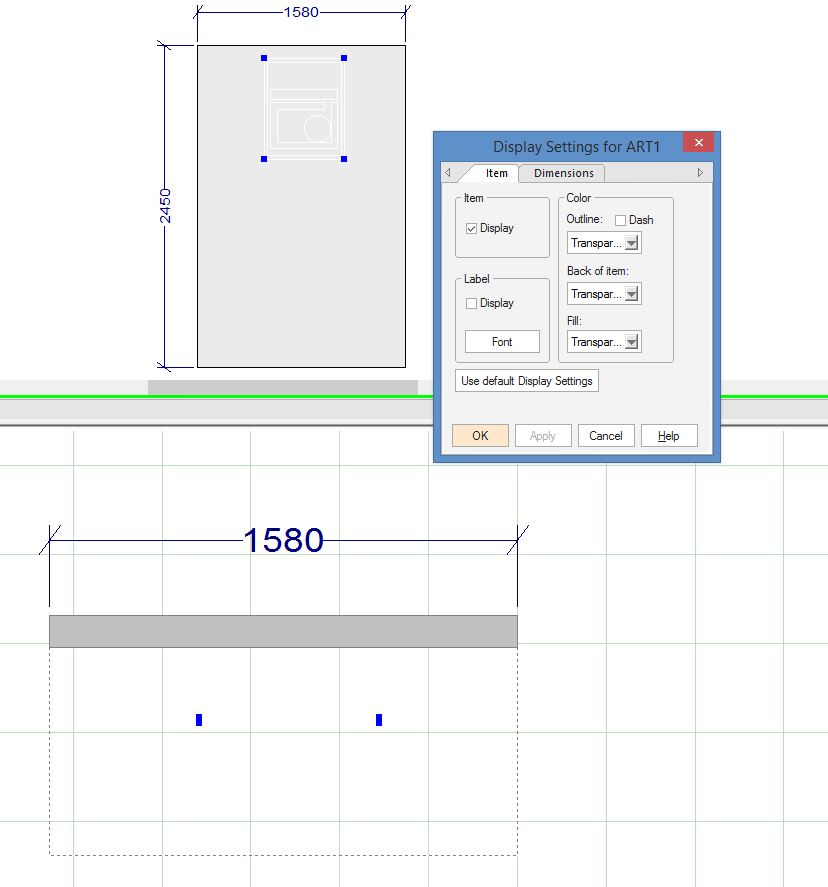
The quick and easy way is to right click on the item in the floor plan, choose Display Settings and in the Color box, change all the entries to Transparent. This leaves the item still selectable if you know where it is or it shows as very faintly visible on the elevation.
The second method is to alter your plan and elevation display schemas. In the plan, right click on a blank area of the drawing and choose Deisplay Settings, goto Items, General, Decorative Items, Wall Decorations and then untick it. If you want (but I wouldn’t) you can then save that Scheme back as your default. Again you have to repeat this for the elevation. If it were me, I’d save the scheme back as 2020 (metric) All-hide-decor and then you can quickly hide and reveal the items by switching schemes.
I’m making the assumption that th background is a wall decoration but if it isn’t you might have to try unticking and re-ticking various boxes in the display schema until you find the one that works.
Hope this helps.