 Kristopher Papaleo
Hi Erik,
There is a way to change the font size and color for annotations.
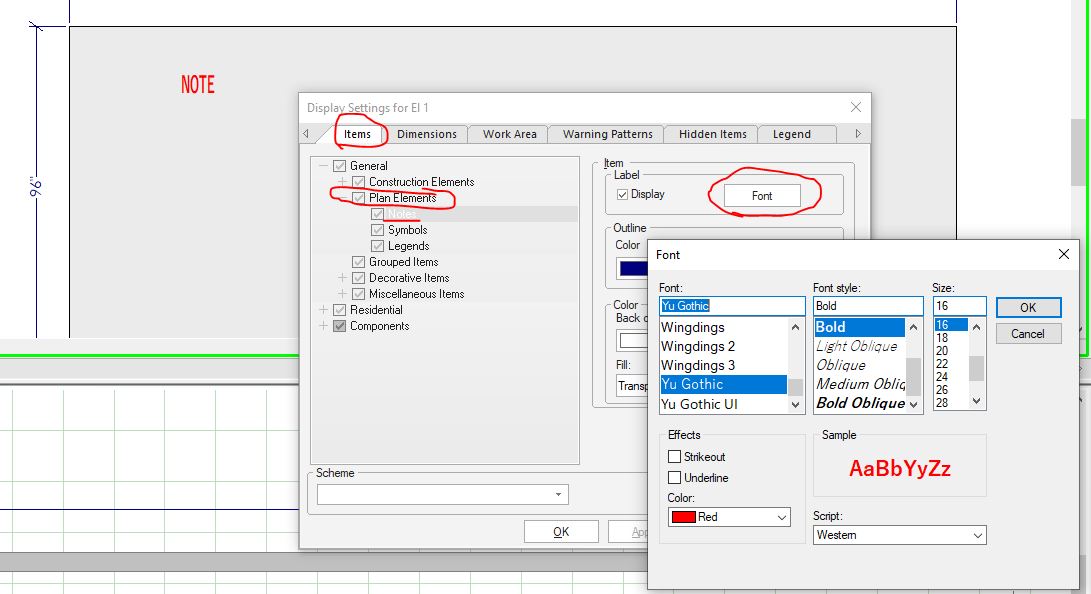
To change the default font and color for your notes, go to Display Settings by right clicking the floor plan (or elevation). Then from the Items tab, expand ‘General’, expand ‘Plan Elements’ and select ‘Notes’. Once you select notes, click on Font on the right side of the window and that will open a smaller window which will allow you to change the font, font style, size, and color.
Once you’ve made your changes, click on ‘Save As’ to give your scheme a name. Once you’ve named the new scheme, you can set it as your default so that every new drawing you make will have the new font colour. Once saved, click on File > Preferences > Display Tab Schemes… then change the elevation scheme to the one you’ve named.
Hope this helps!
Kris