Search Results for 'tips'

  • Topic: Space Mouse?

    September 1, 2018 at 9:39 am #202155

    I’ve been using the Space Mouse for my drafting (autoCAD) for the past few years. However, I am having trouble getting it to work in 2020.  Does anyone have any tips?

    Edith
    Participant

    Designer Catalogs and Cabinet Door Configurator


    2020 has improved the 2020 Design generic catalogs to include Global Style Validation in our navigation. Now, you can easily navigate when selecting different styles for cabinets and finishes, such as door height, style and pulls along with drawer styles and pulls. You can visually see what you’re choosing with the new thumbnail images.

    Here are some 2020 Knowledge Center articles that will provide you with tips, tricks and hints on how to start using them. Check them out!


    Visit the 2020 Knowledge Center and quickly get answer to your questions !


    In reply to: Is it too much to ask?

    June 21, 2018 at 7:44 am #192432
    JC Cousins
    Participant

    Mike, Thanks for the tips. Both of my computers are relatively new. My desktop runs the NVIDIA GeForvce GTX 1060 3GB.

    It bugs me that most of what I have to do involves learning to be an it guy. I am sure 2020 works hard to keep up. I don’t want to be an IT guy. I want to design kitchens, so I hope so.

    The fact that a lot of the fixes involve not importing things that are part of what 2020 is good for, like wall coverings to create great presentations, is kind of defeating the purpose of having the program to begin with. People expect these types of service today. Thanks HGTV!!


    Richard
    Participant

    Hi guys.

    I get a lot of phone calls from designers all over the country asking for help, as I used to do Fusion training in a previous life. So, with this in mind, I like to add some hints and tips to the Fusion forum, so that the most commonly asked questions will hopefully be covered.

    My next topic that I receive quite a lot of phone calls about, is how to design kitchens with supplier specific work surfaces, for example Silestone, Dekton, Caesarstone, or NeoLith etc. And to draw them so they look right, especially on materials with very specific patterning, like veins etc.

    For my work surfaces I always use the ‘Universal worktops’ catalogue, and in order to draw the patterns accurately in my designs, I use ‘Surface coverings’ instead of the standard colour change option, as using the Simple ‘Colour change’ option often creates an undesirable tiled pattern, making it look like there are joins all along the work surface.

    Using surface coverings gives me full control over how the pattern sits on the work surface, including the orientation, and most importantly, the size of the pattern is accurate.

    As an example, to add Dekton ‘Orix’ to a design, follow these steps:

    1. Go to your work surface manufacturer website, or contact them and request or download full slab images, and save them into your ‘Surface covering material’ folder in your Fusion files.

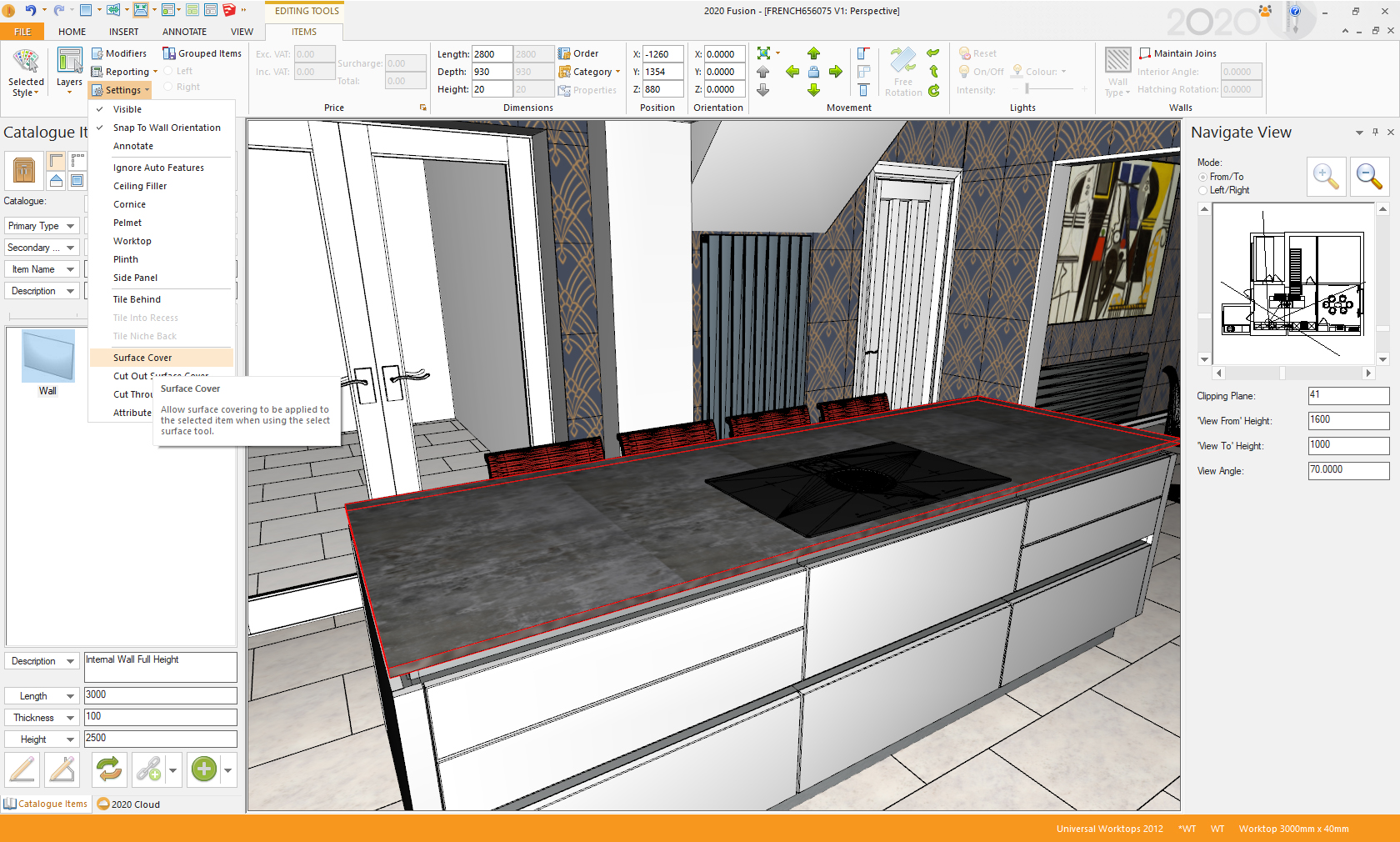
    2. Select the work surface piece you want to add the material to. Go to ‘Items’ – ‘Settings’ – click ‘Surface Cover’. This will allow you to add surface covering to your material.

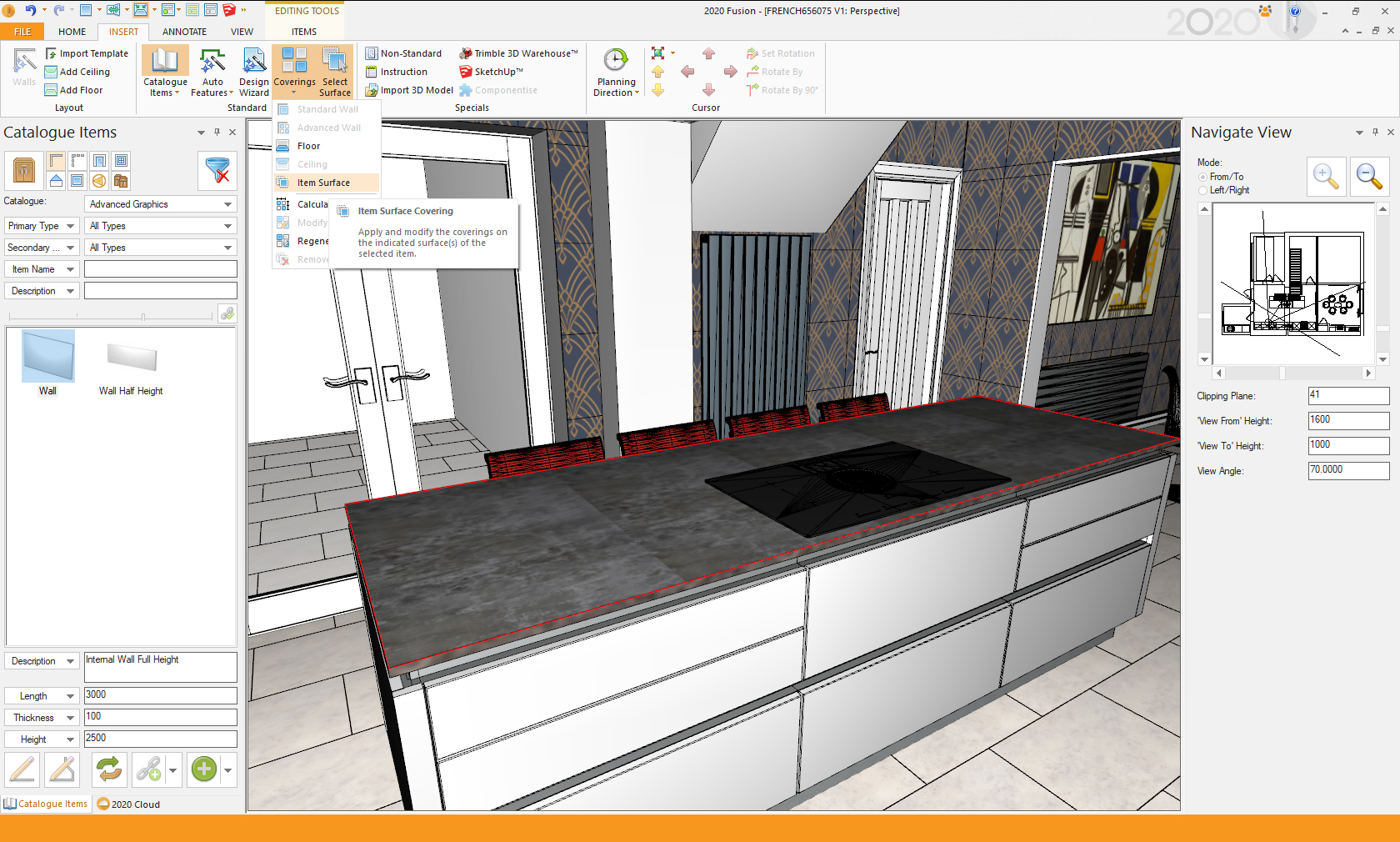
    3. Go to ‘Insert’ – click ‘Select surface’, and in your design window, click on the surface you wish to cover.

    4. Still on the ‘Insert’ tab – click ‘Coverings’ – ‘Item Surface’

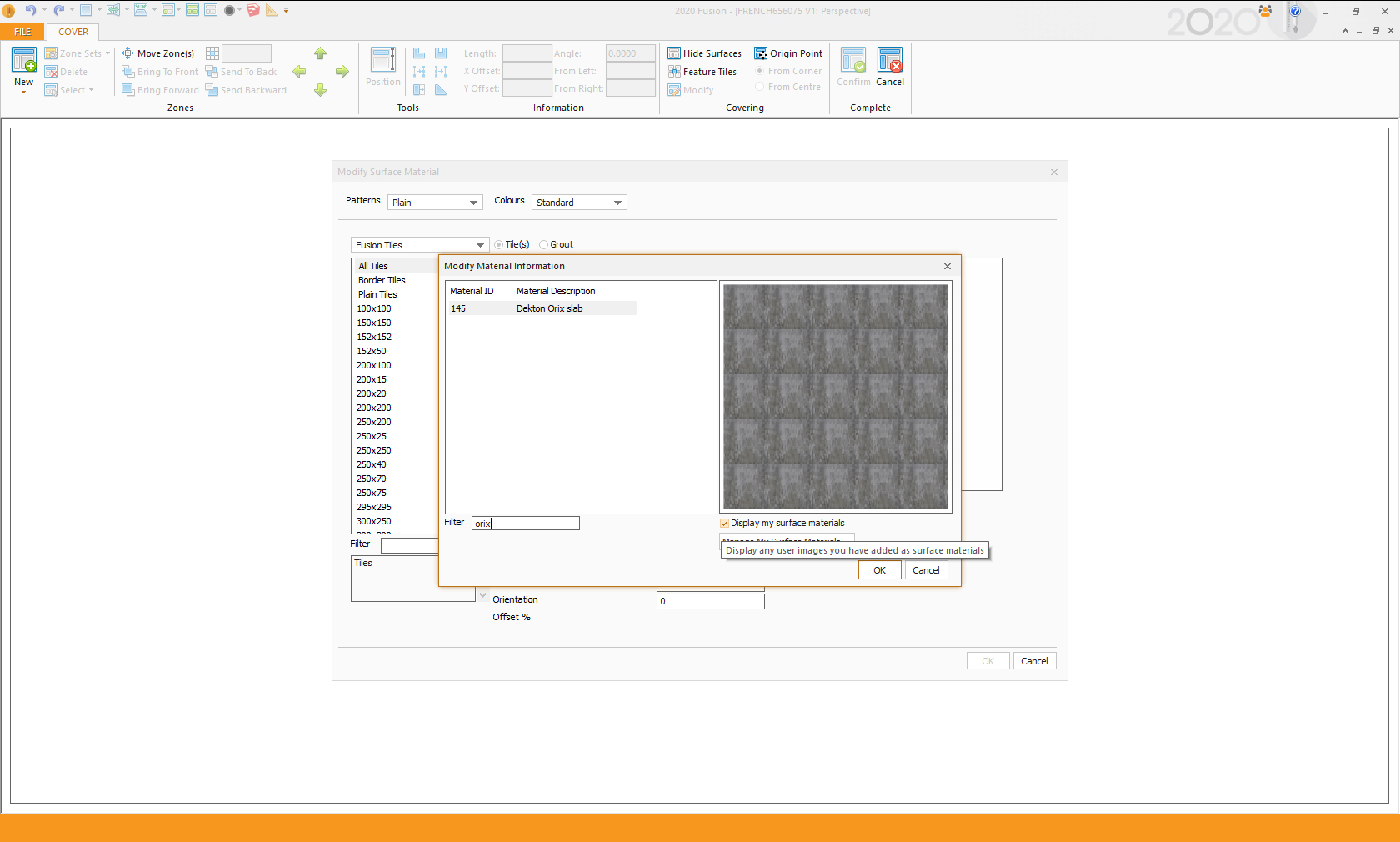
    5. A wizard will open. Select ‘Fusion Tiles’ in the catalogue option. Enter the size of the supplier slab accurately NOT the size of your work surface piece. (Dekton is 3240 x 1472mm) Click ‘Add’.

    6. On the material window that opens, click the ‘Display my surface materials’ box. Then scroll through or search for your colour by name. Click ‘OK’ and the wizard will then show your material as a tile.

    7. Remove the ‘Grout’ line by clicking the ‘Grout’ tab, and entering ‘0’ in the thickness boxes. Click ‘OK’. This will then show you a preview of the material on your work surface piece.

    8. To change which part of the slab is displayed on your work surface piece, click the ‘Origin point’ control in the top menu bar, and position the cursor in any of the corners to preview different parts of the slab on your work surface. Click ‘Confirm’ to apply this to your design.

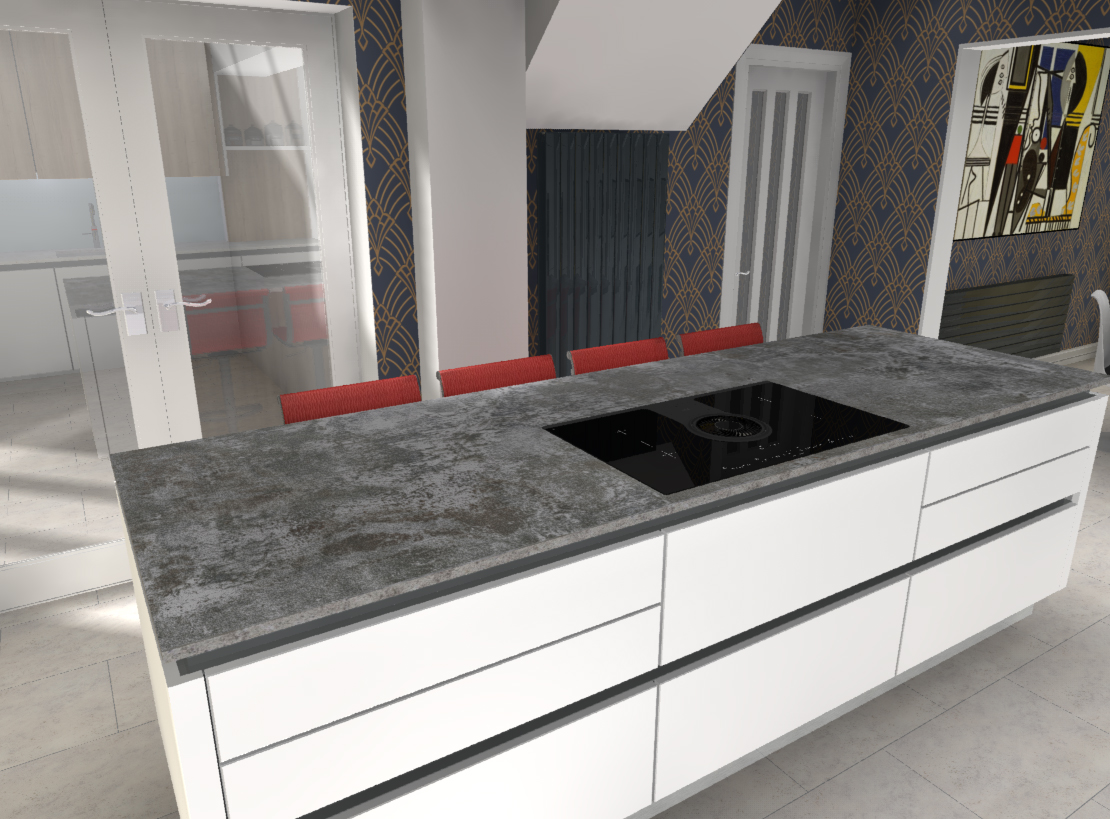
    9.  On my design shown here, as Dekton has a different edge finish to the surface finish, I have simply used ‘Colour change’ and changed the edge colour to a custom colour that matches the Orix edge. (Custom colours is another topic I have covered previously)


    Nicole Mentzen
    2020 Moderator

    Bathroom manufacturers across the UK can now help designers use water efficient products in their bathroom designs when they are produced using 2020 Fusion software.

    Water efficient products that are part of the Water Label scheme, and are included in your catalogues, can be uploaded to 2020 Cloud so that designers selecting sanitaryware and brassware have direct access to them.  They simply drag and drop the product from the cloud based catalogue directly into their design.  

    And furthermore, if they want more information about the product’s water efficient credentials, there is a URL for each product they can click taking them directly to your website. 

    But allowing easy access to the catalogues via 2020 Cloud and including additional information is beneficial for designers AND manufacturers:

    Open new sales channels
    Offer your products to thousands of customers designing with 2020 software. 

    Improve brand exposure
    Put your brand at the fingertips of designers, salespeople and consumers by placing it at the heart of the sales process. 

    Shorten the sales cycle
    Reduce the sales process by empowering consumers to make informed decisions more quickly, based upon accurate product pricing and representation.

    Promote up-selling and cross-selling
    Generate more revenue as designers mix and match products from your portfolio of 2020 catalogues. 

    Improve order accuracy
    Give 2020 software users the ability to design with your products, features and options so that the orders you receive are accurate the first time, every time. 

    Live product streaming
    Give your customers instant access to new and updated products, options and accessories.

    To find out more about getting your product catalogues in the 2020 Cloud just contact our sales team: salesuk@2020spaces.com or your 2020 Fusion support. Or meet our Sales Director Robert Garfoot at this year´s BMA Annual General Meeting on June 20th.

    Topic: 2020 Giza – How to Import From AutoCAD

    May 15, 2018 at 11:10 am #187020
    Christopher Rathlein
    2020 Moderator

    Guide and tips for importing an AutoCAD file into 2020 Giza.

    https://knowledge.2020spaces.com/articles/en_US/Designing_Your_Space/Import-From-AutoCAD
    Amy Truchan
    2020 Moderator

    The party is at the 2020 booth!

    Stop by the 2020 booth (7- 5122) and join in on the celebration!


    This year, 2020 has a jam-packed theater schedule full of tips and tricks geared towards making you a more efficient designer, plus we have presentations on new features that will allow you to showcase your architectural and educational projects and a mini presentation from one of our new manufactures Uniboard.

    BONUS, we are giving away a bunch of cool prizes at each theater session! The 2020 booth 7-5112 is the place to be!
    Learn more

    Topic: Get the recording: 4 days of 20-minute webinars!

    April 16, 2018 at 10:29 am #181974
    Amy Truchan
    2020 Moderator

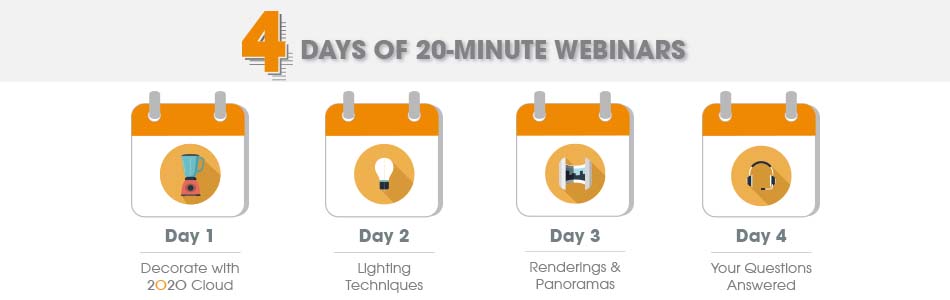
    You couldn´t join 2020 for a week of webinars dedicated to boost your business with 2020 Fusion? Each webinar only lasted 20 minutes, but was guaranteed to provide you with tips, tricks and techniques to enhance your designs, increase your speed and improve your accuracy! It was a can’t-miss, multiple-day event!

    But don´t worry, we have it recorded! Check it out here.

    We hope you enjoy it! Happy designing!

    Topic: March 2018 Blog Roundup

    March 28, 2018 at 3:30 pm #179230

    Topic: March 2018 Blog Roundup

    March 28, 2018 at 3:03 pm #179206

    Topic: Item's List

    March 6, 2018 at 12:32 pm #174839
    Kerstin Cobb
    Participant

    Hi Design friends!

    I have had a lot better success lately with 2020 and started finding ways to work around certain issues. So I just wanted to say thank you for all the great tips and replies that people have posted to my previous questions.

    Here is one small issue I’ve ran into with a co-worker of mine today. Suddenly her items list was empty. Her design was still in tact and her quote was still correct but we couldn’t figure out how to bring all the items back on her list.

    Thanks in advance!

    Kerstin
    In reply to: General Questions

    February 3, 2018 at 11:34 am #168482
    Kerstin Cobb
    Participant

    Hi Ken,

    thanks so much for all your tips. Good to know that others are experiencing similar things and I am not the only one.

    I will give the room_top catalog a try as well thanks!

    Take care, Kerstin.

    Amy Truchan
    2020 Moderator

    “2020 Design allows me to give my clients their very own, personal “HGTV Moment” where they see their new space come to life!”

    Maria Stapperfenne, Tewksbury Kitchens & Baths, former NKBA President

    2020 Design Webinar

    Thursday, February 22, 2018, from 2-3 PM (EST)

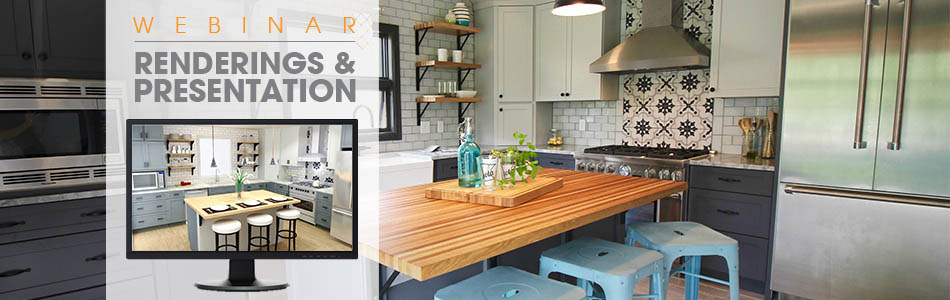
    Discover all the tips and tricks necessary to create stunning and realistic renderings that will delight your customers time and time again. Learn how to enhance your presentation skills to help you build a better business. Join John Morgan, a 2020 expert, and perfect your design and presentation techniques!

    Why you should attend

    • Improve the speed and quality of your renderings
    • Leverage professional marketing textures and color images from your favorite suppliers’ websites
    • Enhance your designs with lighting techniques
    • Acquire innovative presentation techniques that are utilized by successful designers
    • Learn how to easily and affordably incorporate the 360 immersive views and Virtual Reality into your presentation process


    Register Today

    In reply to: Disappearing, altered and skewed dimension lines

    December 21, 2017 at 3:11 pm #164692
    Tiffany Gadway
    Participant

    Thank you so very much for the help, tips, screenshots and file, Mike….I have officially reset my registry and unfortunately, my issue continues. Sad face.

    Now I wonder if the issue is related to my settings that are set for dimension lines. In the settings options, there is just a box that you either check or uncheck for “long extension” lines. Checking the box allows you to adjust the length of the extension lines to any desired length, which I do. Depending on what I am detailing, sometimes I need them sort, other times longer to better illustrate the information, so I have them checked as long and adjust them individually. But upon opening a file, those carefully, manually adjusted extension lines are all just super long all over the place, if not missing the whole dimension completely.

    Maybe they just don’t work in 2020 the way I want them to and the way I have been accustomed to while working in AutoCAD? Can I not adjust them individually and have this saved? Is it all or nothing? Either all really short, or all really long? I would think they are able to be adjusted and saved that way, since it allows adjustments in the first place. I don’t know, but color me frustrated. 🙂 …a nice shade of green.

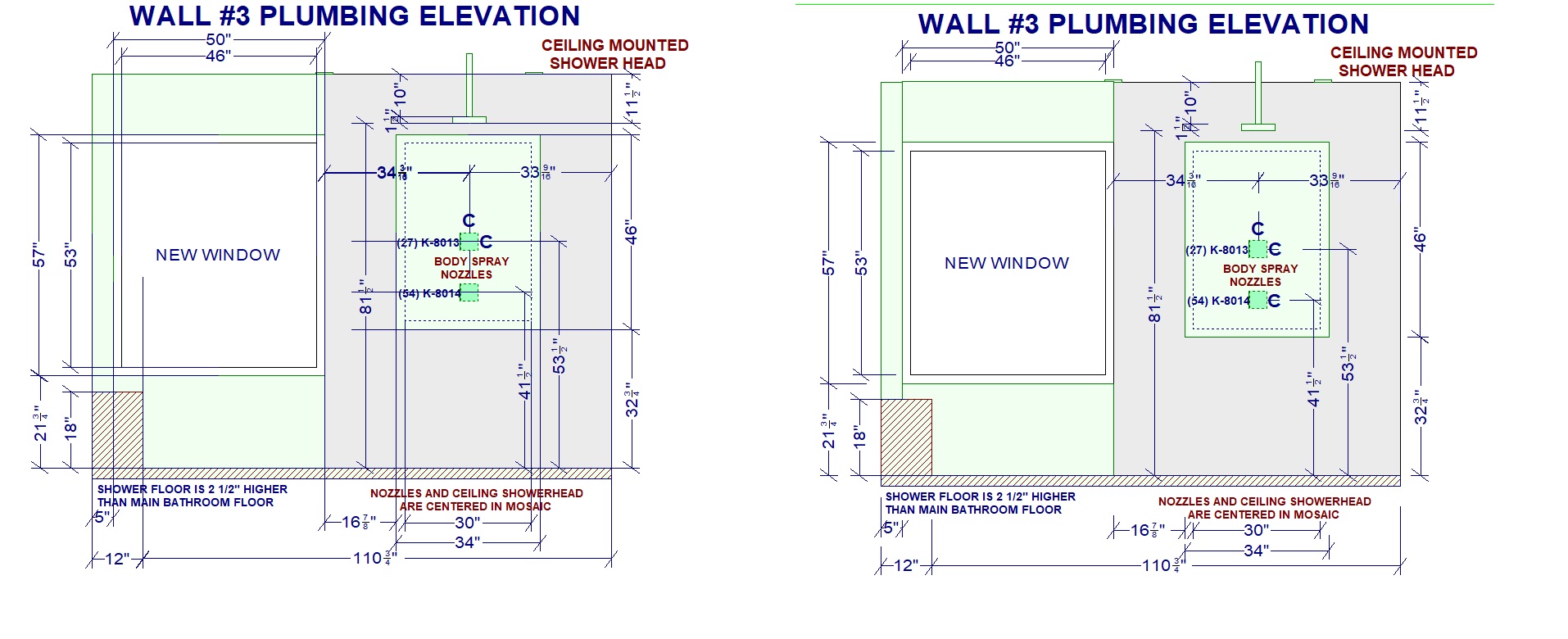
    (I’ve attached a screenshot of what I get after opening a file on the left, and how I need them to be on the right) This file isn’t so bad, but the more detailed the drawing, the more cumbersome this becomes.

    TYIA

    Attachments:

    Each of the unique files is a Zip archive containing the image plus an XML file. The only thing I can think of is to check the contents of each zip file to look for duplicate images. You can do this manually (sort the directory by file size and only look at zips that have identical file sizes) or using a zip content comparator:
    https://www.ultraedit.com/support/tutorials-power-tips/ultracompare/compare-zip-rar-and-jar-archives.html