Search Results for 'perspective view'

  • In reply to: Hiding Walls in Render View

    April 9, 2018 at 8:56 am #181027
    Kerry Fullington
    Participant

    Mike,

    Clipping “works?” but is very inaccurate and cumbersome to control through multiple views.

    It would probably work better if the clip line were a rectangle instead of a circle and you had the ability to fine tune the clip.

    Hiding walls and associated items gives you exactly what you want in the render view and allows you to look at it from all angles in the perspective without further adjustment.

    I can look at a whole wall of cabinets or zoom in on a pull without having to adjust the clipping line. It also gives me the ability to show or not show appliances lighting fixtures, decorative objects etc. without changing my design.

    In reply to: Return Wall not Rendering

    February 6, 2018 at 6:54 pm #169011

    In that case the display you are getting is correct as you are rendering an elevation and not a perspective view so the render is only applying to the ACTIVE placement zone which will not include the return wall.

    If you want to see a render that includes items not present in that placement zone, you will have to do a perspective render OR remove the return walls and fake them using thickened panels or other 3D object (this method will widen the placement zone as well so should work fine).

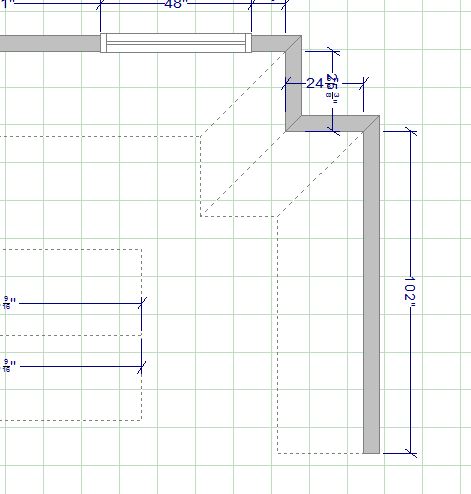
    You can try switching off the placement zone for the return wall but I tried this and also I put a construction line at the back of the wall that included the return walls and tried a front render of that but neither worked.

    In reply to: Return Wall not Rendering

    February 6, 2018 at 6:28 pm #168969
    Rachel Borengasser
    Participant

    * Typo in my last response * “wall in question is showing up in perspective, just NOT on the “Front View” 3D elevation shot.”

    I tried redrawing the wall per the attached. The new elevation is improved, but not CORRECT, in my opinion. I would really like to see that wall represented there. Is it, perhaps, an issue of placement zones? Can they be adjusted to pull in more items?

    Thanks, Rachel

    In reply to: Return Wall not Rendering

    February 6, 2018 at 6:14 pm #168968
    Rachel Borengasser
    Participant

    Hey thanks for the quick response!

    The wall in question is showing up in perspective, just on in the “Front View” 3D elevation shot. I’ll give your method a try and let you know how it goes.

    In reply to: Mosaic or Planking in 2020

    January 8, 2018 at 8:04 am #165279
    Racheal Haddon
    2020 Expert

    Hi James,

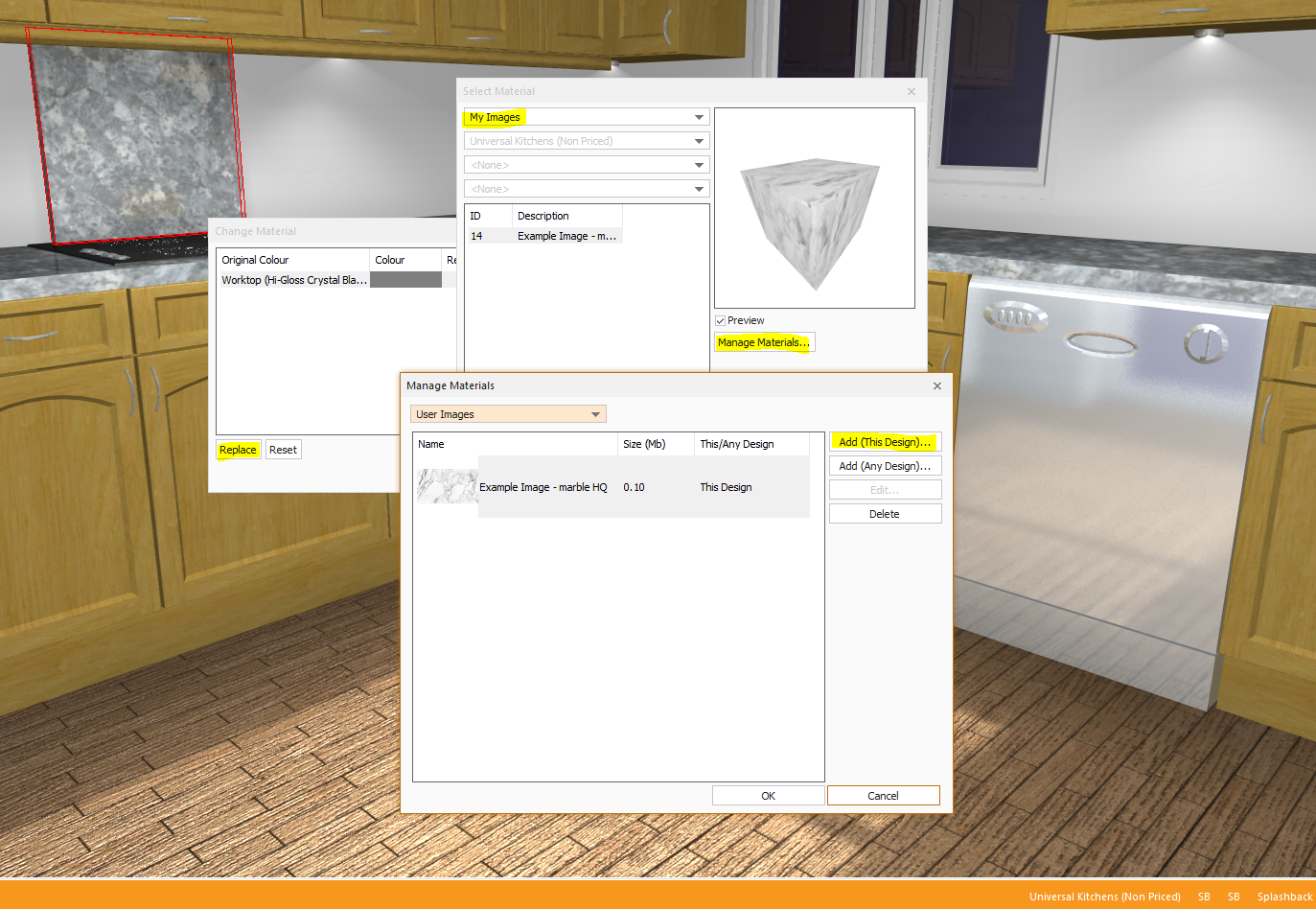
    The quickest option is to select the item and then use the right-click option of “Change Material”. Once you have opened the Change Material window you can then choose to Replace the current colour. In the Select Material window you can then choose “My Images” from the top drop-down bar, and then “Manage Materials”. It is from the Manage Materials window that you can select your Image and apply this to the item. All steps from this process are highlighted in the first attached image.
    The Change Material option may produce a tiling effect on larger surface areas. To avoid this there is also the Coverings feature, where you can stretch your selected image to the exact size you need.

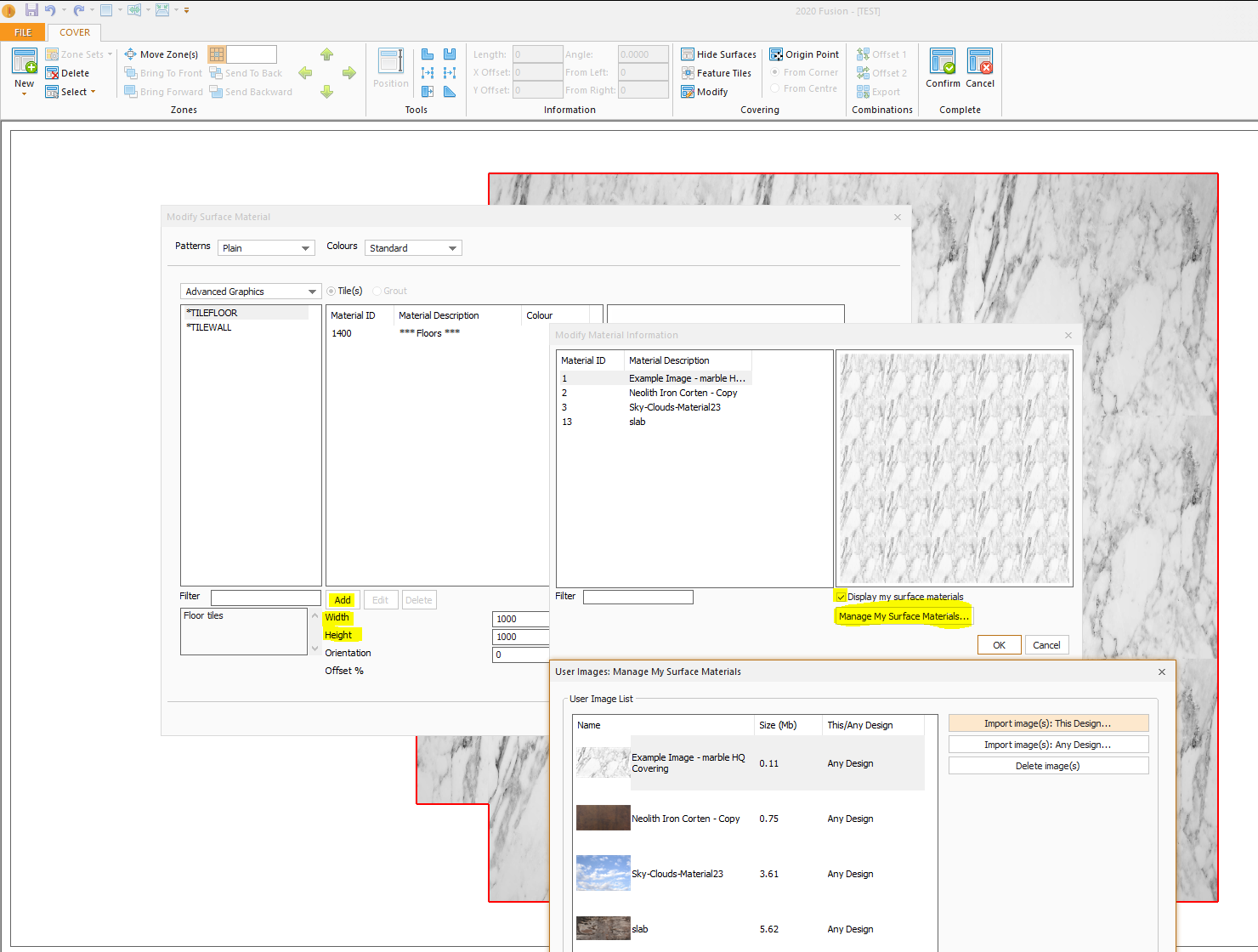
    To use the Coverings feature you must bee in Perspective view, and select the Insert tab, and then Coverings > Floor. You will then be presented with a face-on view of the floor area and the “Modify Surface Material” window. From here you should select “Add” and then “Manage My Surface Materials” (as well as “Display my surface materials”). You will then be asked to add in your image from the relevant saved location on your PC. The image will then apply to the floor to the dimensions mentioned in the Modify Surface material window (1000mm x 1000mm in the second example screenshot attached). Please change the width and height of the inmage to cover the entire floor area if needed, and use the Confirm button to complete the coverings change.

    To use the coverings feature with a specific item (e.g. not floor, walls or ceiling) please follow the video guide linked below:

    If you have any questions about the mentioned features please call the Support line on 01233 635566, or you can email us via fusionsupport@2020spaces.com.


    Kinds regards,
    Racheal Haddon
    Customer Service Agent

    Topic: Phantom Cabinet

    October 25, 2017 at 12:30 pm #155787
    Karlie Rouzer
    Participant

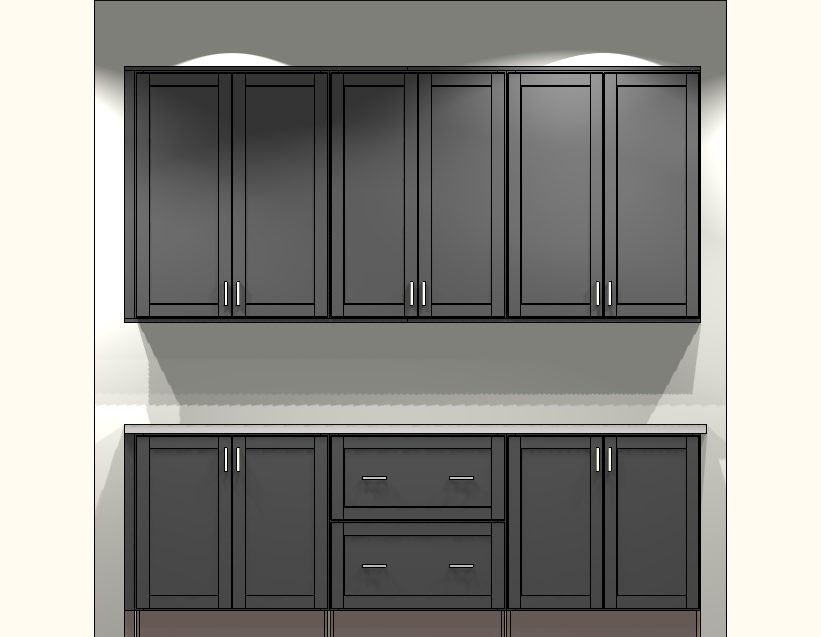
    I have this cabinet that shows up randomly only on my perspecitve views. I have attached a PDF view of it. I have no clue what this cabinet is or how it gets in my drawings. It doesnt show up on my floor plans, elevations, or item list, just my perspective. Any ideas why this is happening or what I can do to get rid of it?

    Attachments:

    In reply to: Version 11.8 Rendering Views Issue

    October 5, 2017 at 1:02 pm #152343
    HJames Relyea
    Participant

    Hi Neil,

    Thanks for you quick response. I apologize, I should have been more clear. The perspective window I’m working from is a saved view from the drop down perspective menu. (lets say its view 1) When I render from that window it produces a rendering of a random different view (view 2/3/top etc). Any assistance you can provide would be greatly appreciated. Thanks!

    In reply to: Version 11.8 Rendering Views Issue

    October 5, 2017 at 12:57 pm #152340
    Neil Wilson
    Participant

    Hi Hjames,

    Creating a saved view does not change the default view so if you close and reopen the perspective window it will default back to the original view.  You will just need to select the saved view from the drop down menu and you will see the saved view.

    Neil

    In reply to: Using 2020 Cloud

    October 5, 2017 at 12:36 pm #152335
    Dana Welcher
    Participant

    When I add items from the cloud to my design they are not visible in the perspective views. I can see it in the design layout and elevations just not when I want to do a perspective view. I checked all the settings and can’t find anything that would turn on/off visibility of objects.

    Topic: 2020 360 PANORAMA – HELP

    September 14, 2017 at 5:32 pm #148255
    Miranda M Wallen
    Participant

    Hello,

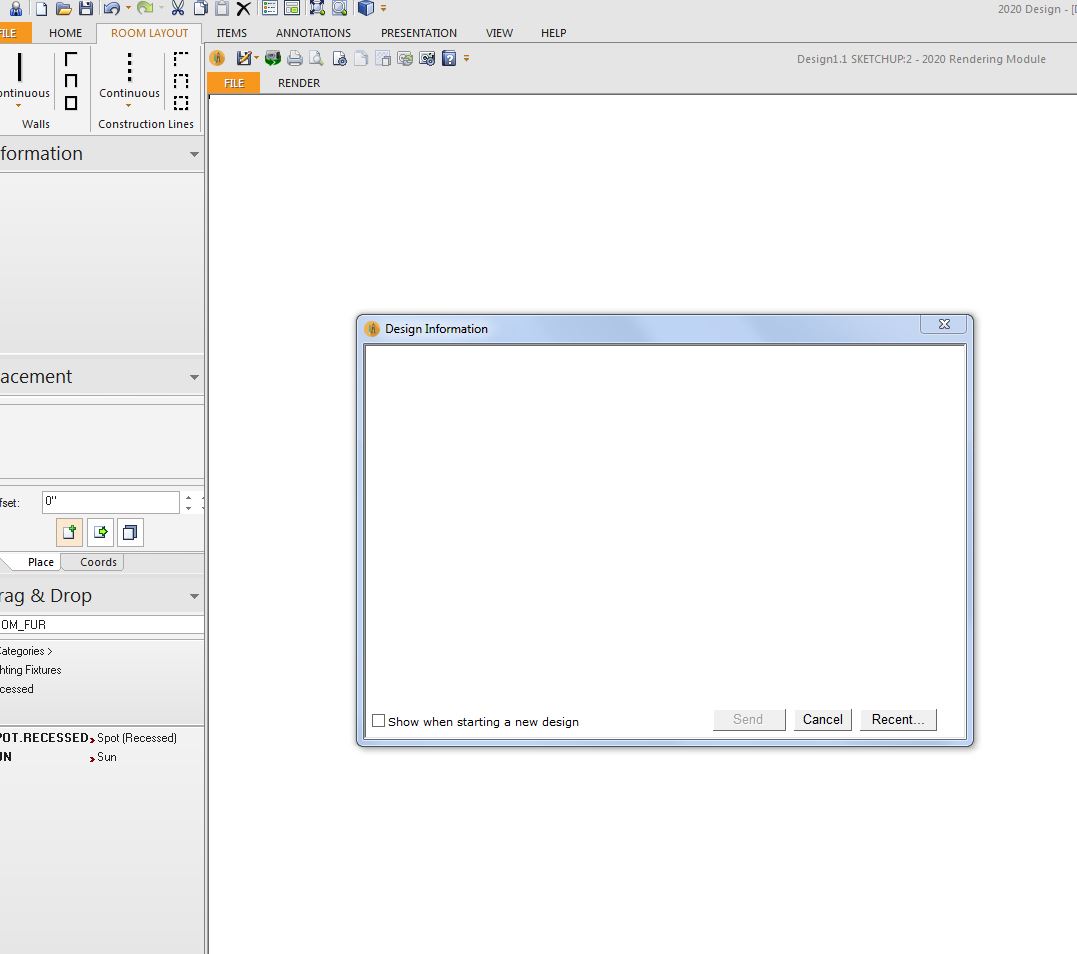
    I am trying to use the 360 Panorama view tool. I can’t seem to figure out how to make it work. I am in the Perspective view, click the save as 360 panoramic view, go through the window and hit the publish button, but then next window that pops up comes up blank…I have tried closing out, shutting down the entire computer, starting a new design, but nothing seems to work.

    I have sketchup models in the design, I took those out and tried it, but still nothing.

    What am I missing?

    Topic: Long & Short Title blocks

    July 10, 2017 at 3:45 pm #138393
    Michele Landon
    Participant

    Hello Community! I need help with figuring out what settings I need to change to make my title block come up the same size with the same information for various print outs (plan view, elevation and perspective). When I’m putting my packets together I start with the perspectives, but the title block in this Vs.11.7.1.78 keeps shortening it and cutting out important cover information. I’ve attached a layout for each print out. I need all the info and size as seen on the plan view layout. Thank you for guidance in advance!

    In reply to: Selected Items in Perspectives not complete

    March 27, 2017 at 10:26 am #122852
    Felix Dalton
    Participant

    Neil

    In the floor plan I will highlight/select the items I want to appear in my perspective.  I will click on the perspective, rotate to the desired angle/view, then on the Renderings Dashboard I will click on the Textures/Display Setting, then click on “Only selected items”.   the walls, trim and tops all disappear.  All that is shown are the cabinets, fillers.  I have 11.4.0.69 but on another computer we have the 11.6, I don’t recall the version, but that has the same issue.

    thanks

    felix

    Topic: Rendering & Cabinet Views Stays Black

    March 14, 2017 at 4:47 pm #121836
    Eric Rainey
    Participant

    Version 11.  I set a perspective view and it stays completely black.  This also happens when viewing a cabinet from the drag & drop menu.  Is this a cabinet catalog issue or a V11 issue?

    In reply to: Using Boxes for images / outside views

    January 16, 2017 at 6:04 am #117332
    Ollie Farrant
    2020 Expert

    Hello

    How are you applying your images o a box ? I would advise that you use the Item surface tool, this way you can change the size of the tile\image to the same size of the face of the box to avoid the image repeating itself.
    While in perspective view please go to the Insert Tab and enable the “Select Surface” tool, now you can select the face of the box as to where you would like to apply a Image\Material. Once this surface as been selected go to the Insert Tab > Coverings >Item Surface.

    Now you are in the Item Surface feature, you can click > Add > Manage my Materials >Import your Custom Image\Material.  Now please Check the “Display My Surface materials” box and select the image you would like to apply to your * box,  You should now see and width and Height fields, here you can define the size of the tile, if you adjust the size to match the size of the face of the *box, this will stretch the image.

    If you require any assistance, you can contact the dedicated 2020 Fusion support team by Phone or email on the below details.

    01233 635 566 – fusionsupport@2020spaces.com

    Many Thanks
    Ollie

    Topic: Rendering

    October 19, 2016 at 12:40 pm #107376
    Teresa Montoya
    Participant

    We downloaded the most recent 2020 version and just got new computer systems. Our video card is an AMD Radeon 470 RX which I was told is above requirements, but whenever we enter perspective view (or any other view), we try to rotate the image and it just disappears and stops working. What is the issue or how can we fix this?